USB Hubs and Adapters: The Complete Buying Guide
The right USB hub depends on your ports, devices, speed and power needs. Choose a basic USB-A hub for peripherals, a powered hub for several devices, or a USB-C hub or dock when you need display output and charging.
On this page (20 sections)
- What does a USB hub do?
- How do you choose the right USB hub?
- USB hub types compared
- Which USB hubs suit keyboards, mice and everyday devices?
- USB-A hubs for PCs and laptops
- When should you choose a 7-port USB hub?
- Can a USB hub handle RGB and gaming equipment?
- What is the difference between a USB hub and a USB port?
- Internal USB hubs for desktop upgrades
- USB-C hubs, adapters and docks
- USB-C docking stations for a desk
- Card readers and USB storage adapters
- USB-C to USB-A adapters and extension cables
- USB network adapters
- USB sharing switches for two computers
- Product choices for common USB hub setups
- How should you set up and care for a USB hub?
- USB hub buying checklist
- Explore usb hubs and adapters by topic
- Which USB hub should you choose?
The right USB hub depends on the ports already on your computer, the devices you want to connect, the speed you need and whether those devices need extra power. A simple USB-A hub works well for keyboards and mice, while a USB-C hub or dock suits displays, charging and newer laptops.
A hub does not create unlimited bandwidth or turn every port into every type of connection. Your computer, cable, hub and connected device must support the function you want.
This guide covers USB-A hubs, USB-C hubs, powered hubs, adapters, card readers, docking stations and related accessories. It also explains the trade-offs among the 4 products included here.
What does a USB hub do?
A USB hub expands one host connection into multiple USB ports. It lets you connect several accessories to a computer that has too few available ports.
A typical hub can connect a keyboard, mouse, flash drive, printer, webcam or external storage device. The hub shares the computer's connection among those devices, so the result depends on the slowest relevant link and the work happening at the same time.
The host connector matters first:
- USB-A hubs connect to the older rectangular USB-A ports found on many desktops, laptops and accessories.
- USB-C hubs connect through the smaller reversible USB-C connector.
- USB-C docks may add display output, charging, Ethernet and card slots as well as USB ports.
- Internal USB hubs fit inside a desktop and connect to a motherboard header or expansion path.
A USB hub is useful when your computer has enough capability but not enough physical ports. If you need a different connector, display output or network connection, you may need an adapter or dock instead.
How do you choose the right USB hub?
Choose a USB hub by matching host connector, port type, speed, power and special functions to your setup. Start with the computer port, then count the devices you will use at the same time.
Which USB hub connector does your computer need?
Check the port on the computer before checking the ports on the hub. A USB-A hub needs a USB-A host connection, while a USB-C hub needs a USB-C connection with the required data, video or charging support.
USB-C describes the connector shape, not the full performance level. A USB-C port may support basic USB data, faster USB data, video output, charging, or several of these functions.
If your computer has only USB-C ports, a USB-A hub will need a suitable adapter or a USB-C hub with USB-A outputs. If your computer has USB-A ports and you need HDMI or charging, a basic USB-A splitter may not be enough.
How many ports should a USB hub have?
Buy enough ports for the devices you use together, then leave one spare if your desk changes often. A 4-port hub can cover a keyboard, mouse, storage device and printer, while a 7-port hub suits a larger fixed workstation.
Port count is not always the same as data-port count. Some hubs include a charging-only port, a power input or a display connector in the total advertised number.
For a small desk setup, compare the best USB 3.0 hub for laptop options with the devices you carry. A compact design is easier to pack, but a larger powered hub can be easier to organize at home.
What USB speed do you need?
Choose a USB 3.0 or newer hub for faster file transfers and modern storage devices. USB 2.0 remains suitable for many keyboards, mice, printers and basic input accessories.
USB 3.0 supports transfer speeds up to 5Gbps under the standard's stated conditions. Actual transfers can be lower because the computer port, cable, storage device and workload all affect performance.
USB 3.2 has several speed levels, so read the exact specification rather than assuming every USB 3.2 hub is equally fast. Our guide to a USB 3.2 hub explains the speed labels and what to check.
Do you need a powered USB hub?
A powered hub includes an external power adapter. It is usually the safer choice when you connect several devices, external drives, charging devices or equipment that may draw more power.
A bus-powered hub can be simpler for travel because it draws power from the computer. It is a good fit for low-power accessories, but several active devices can put more demand on the host port.
A powered hub still cannot guarantee that every connected device will work in every situation. Check the adapter output, the hub's stated limits and the requirements of your devices.
USB hub types compared
The best USB hub type depends on where you use it and what you connect. Basic splitters prioritize extra USB ports, while docks and adapters add functions such as video, charging or networking.
| Hub type | Best fit | Main trade-off |
|---|---|---|
| Basic USB-A hub | Keyboards, mice and simple accessories | Usually adds fewer connection types |
| Powered USB-A hub | Several peripherals or storage devices | Needs an external adapter |
| Mini USB hub | Travel and occasional use | Fewer ports and less desk flexibility |
| USB-C hub | USB-C laptops and tablets | Video and charging depend on host support |
| USB-C dock | Desk setups with displays and charging | Larger and more expensive than a basic hub |
| Internal USB hub | Desktop expansion inside the case | Requires installation and compatible headers |
| USB sharing switch | One device shared between computers | Does not provide ordinary port expansion |
Which USB hubs suit keyboards, mice and everyday devices?
A 4-port USB 3.0 hub is often enough for a keyboard, mouse, printer and flash drive. For basic input devices, port placement and cable reach can matter more than the highest advertised speed.
The best 4-port USB 3.0 hubs are useful when you want a predictable number of ports without a large desktop accessory. A mini model can work for a laptop bag, while a powered model is more suitable for a stationary setup.
For a keyboard and mouse, look for easy access and enough cable length to keep the hub from pulling against the computer. Our guide to the best USB hub for keyboard and mouse focuses on that simple desk use.
A mini USB 3.0 hub can be a better travel choice when you need to connect only a few accessories. Its smaller size may matter more than extra power controls when you move between workspaces.
USB-A hubs for PCs and laptops
USB-A hubs remain useful for computers with rectangular USB ports and for accessories that still use USB-A. They can expand a single port into 4 or more connections without changing the devices already on your desk.
A USB hub for PC should match the computer's available port and the type of equipment connected to it. A desktop setup can benefit from a powered hub, while a laptop user may care more about cable reach and portability.
For faster peripherals, compare USB 3.0 hubs for PCs and confirm that the host port is also USB 3.0 or newer. Connecting a fast hub to a slower host port limits the connection.
Brand choice can narrow a large search, but it should not replace checking ports and power. Our best Anker USB 3.0 hub guide and best UGREEN USB 3.0 hub guide are useful when you already prefer one of those brands.
The best j5 USB hub options may suit buyers comparing a particular maker's port layouts and designs. Still, confirm the exact model because products under one brand can have different host connectors and functions.
When should you choose a 7-port USB hub?
Choose a 7-port USB hub when several devices stay connected at one workstation. It can reduce repeated cable swapping for a desktop with a keyboard, mouse, printer, storage, webcam and other accessories.
The best 7-port USB hubs should be compared by power arrangement, port placement, host cable length and the mix of charging and data ports. A higher port count does not automatically mean every port can provide the same speed or power.
A powered 7-port hub can be easier to manage for a fixed desk. Keep high-demand devices separated from low-demand accessories when possible, and avoid treating every port as an independent full-speed connection.
Can a USB hub handle RGB and gaming equipment?
A USB hub can connect RGB controllers and gaming accessories if the hub, computer and devices support the required power and data connection. A powered model is often easier to consider when several lights, controllers and input devices run together.
The USB hub for RGB guide explains how to check controller connections, power needs and software-related limits. RGB lighting can add power demand even when the device also acts as a simple controller.
For a gaming desktop, placement and cable management matter. The best USB hub for gaming PC options should be judged by access to the desk, the number of connected devices and whether external power is available.
Do not assume a hub fixes every gaming problem. It does not increase a computer's frame rate, and it cannot replace a motherboard port or a suitable display connection.
What is the difference between a USB hub and a USB port?
A USB port is a physical connection built into a computer or accessory. A USB hub is an accessory that uses one host connection to provide several downstream ports.
The practical difference is that a hub shares the host connection. Several devices connected to one hub may compete for the available bandwidth and power, while separate computer ports may have different internal paths.
Our USB hub vs USB port comparison explains when a hub is enough and when a direct connection makes more sense. Use a direct computer port for a device that needs a specific speed or stable connection when that option is available.
Internal USB hubs for desktop upgrades
An internal USB hub can add ports inside a desktop case, but it requires more planning than an external hub. Check the motherboard header, case space, cable route and the instructions for the exact hardware before installation.
The guide to choosing an internal USB 3.0 hub covers the connections and fit questions that matter. This type of expansion is better for a permanent build than for a laptop or a portable setup.
An internal hub also changes how you access the ports. Front-panel access may be useful for flash drives and phones, while rear or internal connections can suit devices that stay attached.
USB-C hubs, adapters and docks
USB-C hubs are useful when your laptop or tablet has limited ports, but the USB-C connector alone does not confirm every feature. Check for USB data speed, DisplayPort Alt Mode and Power Delivery support before buying.
The best USB-C hubs cover basic expansion, while a dock usually adds more connections for a fixed desk. A USB-C hub can be compact, but it may have fewer ports and less power handling than a full docking station.
This Anker model supports USB-C, USB4 and Thunderbolt connections and works with compatible MacBook, Windows and ChromeOS computers that support the required display and power features. It is not compatible with Linux.
The USB-C power input on this model is for charging rather than data transfer. Its USB-C data port does not provide video output, so the HDMI connection is the display path.
For a MacBook Pro, compare USB-C hubs for MacBook Pro and check the computer's display support. A hub that fits physically may still lack the video or charging function you need.
USB-C hubs with HDMI
An HDMI-equipped USB-C hub can connect a compatible laptop to an external monitor or TV. The computer must support video output through USB-C, often through DisplayPort Alt Mode, for the HDMI port to work as expected.
The best USB-C hub with HDMI options differ in resolution, refresh rate, charging and USB data ports. Check all of those points rather than choosing by HDMI presence alone.
A USB-C to HDMI adapter is a simpler choice when you need one display connection and no extra USB ports. Compare the best USB-C to HDMI adapter options when a full hub would add functions you do not need.
The guide to computer monitor adapters can help when the computer and monitor use different video connectors. The correct adapter depends on the source port, display input and supported signal.
USB-C docking stations for a desk
Choose a USB-C docking station when you want one cable to connect several desk devices, such as monitors, USB accessories, storage and network equipment. The laptop and dock must support the required display and Power Delivery functions.
The best USB-C docking station for laptop choices are designed around a fuller desk setup than a small travel hub. Check how many displays you need and whether the dock supports their resolution and refresh rate.
Thunderbolt docks use a different performance tier and require compatible Thunderbolt hardware for their main benefits. See the best Thunderbolt docking station for laptop guide if your computer and peripherals use Thunderbolt.
DisplayLink docks use software and a different display approach from a direct video connection. The best DisplayLink docking station options may suit multi-display setups, but check operating system support and any software requirements first.
Card readers and USB storage adapters
A card reader turns a memory card slot into a computer connection. Photographers, creators and phone users should check whether the reader supports the card type, connector and transfer speed they need.
Read what is an SD card reader if you are unsure how a reader fits into a file-transfer setup. An SD reader may be built into a hub or sold as a separate adapter.
For mobile transfers, compare the best SD card reader for phone options with your phone's connector and operating system. The reader still needs a compatible card format and a way to manage the files.
USB hubs can connect external storage, but several drives sharing one host connection may compete for bandwidth. For a single drive, a direct port may be simpler; for several devices, power and cable organization become more important.
USB-C to USB-A adapters and extension cables
A USB-C to USB-A adapter changes the connector type so one device can connect to another. It does not automatically add more data speed, power or display support than the connected ports allow.
When charging is the priority, use the guide to the best USB-C to USB-A adapter for charging and check the stated charging purpose. Data and charging capabilities can differ between adapters.
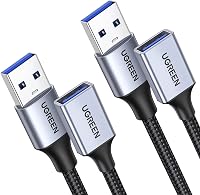
A USB extension cable moves a connection farther from the computer without adding ports. The best USB extension cable options should be matched to the USB standard and the length you need.
Longer cable runs can make connections more sensitive to signal quality, power delivery and device requirements. Keep the cable route simple and avoid unnecessary adapters between the computer and the device.
USB network adapters
A USB network adapter adds a connection such as Wi-Fi or Ethernet when the computer lacks the needed built-in option. Choose based on the computer's USB port, operating system and network standard.
The best USB Wi-Fi adapter for PC choices suit desktops and laptops that need wireless networking through USB. Check antenna design, operating system support and the adapter's stated wireless standard.
For a wired connection, compare the best USB Ethernet adapter options. A wired adapter may be useful for a desktop, travel setup or troubleshooting when built-in networking is unavailable.
Bluetooth adapters serve a different purpose from Wi-Fi and Ethernet adapters. The best USB Bluetooth adapter for PC options are for compatible Bluetooth accessories, not ordinary network access.
USB sharing switches for two computers
A USB sharing switch lets one USB device or group of devices be used with 2 computers, usually by changing which computer has control. It is different from a hub because its main function is switching rather than adding independent ports.
The best USB sharing switch for 2 computers options can help when one keyboard, mouse, printer or other USB accessory must move between systems. Check the number and type of shared ports before buying.
A sharing switch does not remove the need for a hub if you have more devices than the switch supports. You may use a hub behind the switch, but power and compatibility can become more complex.
Product choices for common USB hub setups
The 4 products below cover two powered USB 3.0 hubs, one USB-C hub with HDMI and one compact 4-port Acer hub. Their differences matter more than brand names alone.
SABRENT 4-Port Powered USB 3.0 Hub
The SABRENT model suits a user who wants 4 USB 3.0 ports, individual control over each port and a compact body. It includes a 2.5 Amp power adapter and supports USB 3.0 transfer speeds up to 5Gbps.
Each port has its own power switch, so you can turn connected devices on or off without unplugging them. The hub is backward compatible with USB 2.0 and USB 1.1 devices.
Its listed dimensions are 3.5 in L x 1.5 in W x 0.5 in H, and its listed weight is 1.5 oz. That makes it a practical option when desk space and portability matter.
The trade-off is that this is a USB-A expansion hub rather than a USB-C dock. It does not replace a display adapter, card reader or network adapter.
atolla Powered USB Hub 3.0 4-Port
The atolla suits buyers who want 4 USB 3.0 data ports, individual switches and a separate charging port. Its 65 cm cable gives more reach than a very short travel hub, and it includes a 5V/3A AC power adapter.
The individual illuminated switches let you control the USB ports without repeatedly removing devices. The hub is plug and play and supports hot swapping.
Its body measures 4.25 in L x 1.69 in W x 0.91 in H. The title and product data identify it as a powered 4-port USB 3.0 hub, so compare the actual port layout with your desk before ordering.
The trade-off is that it is larger and heavier than the SABRENT model. Its strengths are the longer cable, higher-rated power adapter and charging port.
Anker USB C Hub
The Anker model suits a USB-C laptop user who needs basic USB expansion, HDMI output and pass-through charging in one compact device. It has 5 total functions, including HDMI up to 4K at 30Hz, one USB-C data port and 2 USB-A data ports.
The USB-C 100W PD-IN port supports charging only. It does not support data devices such as headphones or speakers, and the charger needed for pass-through charging is not included.
The hub measures 4.78 in L x 1.59 in W x 0.45 in H and weighs 1.44 oz. It supports compatible MacBook, Windows and ChromeOS systems, USB4 and Thunderbolt connections, and it is not compatible with Linux.
The trade-off is that its functions depend on the host computer's USB-C display and Power Delivery support. It is more flexible than a basic USB-A hub, but it does not offer a large collection of USB ports or a card reader.
Acer USB Hub 4 Ports
The Acer model suits a laptop or desktop user who wants 4 USB 3.0 USB-A ports and a long 4 ft cable. It also has a USB-C power input that supplies power to the 4 USB-A ports for more stable data transfer.
The USB-C input is not a data port and cannot charge other devices. It requires a 5V USB-C power source, and the product data warns against using a higher voltage.
The Acer hub measures 4.13 in L x 1.18 in W x 0.35 in H and weighs 68 g. It supports Windows, macOS, ChromeOS and Linux, with compatibility listed for desktops, laptops, tablets and USB flash drives.
The trade-off is that it has no HDMI, Ethernet or card reader. It is a good fit for adding USB-A ports at a distance, but not for turning a laptop into a full desk dock.
How should you set up and care for a USB hub?
Place the hub where the host cable is not stretched and where connected plugs are easy to reach. A stable position reduces accidental movement when you connect a flash drive or unplug a peripheral.
Connect the hub to the computer first, then attach devices one at a time if you are diagnosing a problem. This makes it easier to identify a cable, port or device that is causing the issue.
Use the supplied power adapter only where the hub is designed for external power, and follow the stated voltage requirements. For the Acer model, the USB-C input is a 5V power input for the USB-A ports, not a data or device-charging port.
Keep high-speed storage devices on a suitable USB 3.0 or newer connection. A USB 2.0 host port or cable can limit the result even when the hub supports faster transfer.
Avoid placing a USB 3.0 hub directly beside a wireless receiver if you notice connection problems. Moving the receiver or using a USB 2.0 port may help in some setups.
Disconnect storage through the operating system before removing it. This reduces the risk of interrupted writes and corrupted files.
USB hub buying checklist
Use this checklist before choosing a model:
- Identify whether the computer's host port is USB-A or USB-C.
- Count the devices that must stay connected at the same time.
- Separate data ports from charging-only ports and power inputs.
- Match the USB speed to your storage and transfer needs.
- Decide whether the hub needs an external power adapter.
- Check USB-C support for video output and Power Delivery.
- Confirm operating system compatibility.
- Measure the cable distance and desk space.
- Check whether the hub needs HDMI, Ethernet, SD or other special connections.
- Leave room for future devices if your setup changes often.
Explore usb hubs and adapters by topic
- Best Powered USB Hubs for PCs
Which USB hub should you choose?
Choose the SABRENT if you want a thin 4-port powered USB 3.0 hub with individual LED power switches. Choose the atolla if you want a longer cable, individual switches, a 2.4 Amp charging port and a 5V/3A adapter.
Choose the Anker if you need a USB-C hub with HDMI, 5Gbps USB data ports and up to 85W pass-through charging. Choose the Acer if you want 4 USB-A ports, a 4 ft cable and a 5V USB-C power input for the hub's USB-A ports.
The best USB hub is the one that matches your host connector, device count, speed and power needs. If you need displays, charging and networking together, compare USB-C docks rather than choosing a basic port splitter.
Frequently asked questions
What is a USB hub used for?
A USB hub expands one computer port into several ports so you can connect devices such as keyboards, mice, storage drives, printers and card readers. Choose a powered model when connected devices need more stable power, and check whether the hub uses USB-A or USB-C for the host connection.
Is a USB hub the same as a docking station?
A USB hub mainly adds ports, while a docking station usually combines USB with display outputs, charging, networking or card readers. The line is not fixed, so compare the exact ports and power functions you need instead of relying only on the name.
Do USB hubs reduce speed?
A USB hub shares the host connection across its active data ports, so several transfers can compete for the available bandwidth. A USB 3.0 or USB 3.2 hub can still be suitable for normal storage and peripherals, but the computer port, cable and device must support the claimed speed.
Do USB hubs need external power?
A bus-powered hub draws power from the computer and can suit low-power devices such as a mouse or keyboard. An externally powered hub has its own adapter and is a better fit for several connected devices, storage drives or equipment that needs steadier power.
Can a USB-C hub charge a laptop?
Some USB-C hubs support pass-through charging through a dedicated power input, but the computer must support USB-C Power Delivery and the hub must support the required wattage. Check whether the port is for charging only, data, video, or a combination before you buy.