How to Choose a USB 3.0 Hub with HDMI
Choose a USB 3.0 hub with HDMI by checking the host port first, then matching HDMI resolution, USB data speed, charging, display count and operating system support. A hub cannot add video output when the computer's USB-C port lacks the required display support.
On this page (8 sections)
- What should you check first on a USB 3.0 hub with HDMI?
- How does HDMI resolution affect your choice?
- How many USB ports and what speed do you need?
- Do you need pass-through charging?
- Should you choose a powered USB hub?
- Do you need Ethernet or memory card readers?
- How should you set up a USB 3.0 hub with HDMI?
- Which USB 3.0 hub with HDMI should you choose?
A USB 3.0 hub with HDMI is a practical choice when you need more USB ports and an external display from one computer connection. If you are weighing display-only connections against extra ports, see USB-C to HDMI adapter vs hub.
Start by confirming the host port, because HDMI output usually depends on USB-C DisplayPort Alt Mode, USB4 or Thunderbolt support rather than USB data speed alone.
The right hub depends on your display setup and daily devices. For specific models, compare USB-C hubs with HDMI.
A simple 5-in-1 model may be enough for one monitor and a few accessories, while a larger dock suits dual displays, wired networking and memory cards.
If you want the wider basics first, read our USB hub buying guide. It explains the main hub types before you compare HDMI models.
What should you check first on a USB 3.0 hub with HDMI?
Check the computer's host connection before counting the hub's ports. A USB-A port may support USB 3.0 data but cannot automatically provide video through an HDMI adapter.
This first check saves the most trouble later. If your laptop lacks the right video support, a hub with many ports will not create an HDMI signal from data alone.
Most USB-C HDMI hubs require a USB-C port with DP Alt Mode. USB4 and Thunderbolt ports may also work when the computer and hub support the needed features.
That distinction matters for older laptops and some budget models. A port can look like USB-C and still be limited to charging or slow data, with no display output.
Look for these details in your computer's specifications:
- USB-C with DisplayPort Alt Mode
- USB4 or Thunderbolt support
- Power Delivery input, if you want pass-through charging
- The operating system supported by the hub
- The number of external displays supported
Check the operating system list with the same care. Some hubs support Windows and ChromeOS on compatible devices, while others add macOS support, and Linux may not be listed at all.
Also confirm whether Power Delivery is present. Without it, you can still use HDMI and USB data, but the laptop may drain while you work at a desk setup.
A USB-C connector only describes the shape of the port. It does not guarantee video output, fast data, charging or compatibility.
The same warning applies to USB4 and Thunderbolt labels. Each name describes a broader standard, but your exact laptop, hub and cables must all support the functions you plan to use.
For writers, students and office workers, the host port check is quick and practical. Look up your model online, check the ports in Settings or the manual, and match that result to the hub before you count HDMI or USB ports.
For a deeper comparison of connector types, see our guide to the best USB-C hubs.
How does HDMI resolution affect your choice?
HDMI resolution and refresh rate determine how sharp and smooth the external display can look. A hub marked 4K@60Hz is better suited to smooth desktop movement than one limited to 4K@30Hz, but your computer and monitor must also support that signal.
A single-display setup is usually easier to match. Check the monitor's resolution, refresh rate and HDMI input before choosing the hub.
Dual-display support needs more care. Some hubs can send one display to each of two HDMI ports, while others mirror the same image.
Operating system support can also change how multiple screens work.
The Anker Laptop Docking Station Dual Monitor supports one HDMI display at up to 4K@60Hz or two HDMI displays at up to 4K@30Hz. On macOS, both external monitors show the same image.
The hub has 2 HDMI ports, 2 USB-A data ports, a USB-C PD-IN charging port, Ethernet and microSD/SD card readers. It supports USB-C, USB4 and Thunderbolt connections, plus Windows 10 and 11 and ChromeOS on compatible devices.
It is not compatible with Linux.
Its 4.65 x 2.01 x 0.69 in ABS enclosure weighs 3.2 oz. A 100W PD wall charger and USB-C to USB-C cable are required for the stated charging setup, and the hub includes an 18-month warranty.
How many USB ports and what speed do you need?
Choose the number of ports by counting what you connect at the same time, then leave one spare for a device you may add later. **USB 3.0 data ports commonly support up to 5Gbps.
For PC-focused expansion options, compare the best USB 3.0 hubs for PCs**, but the actual transfer depends on the computer, device, cable and shared hub bandwidth.
A mouse, keyboard and printer need different access than an external SSD or camera card reader. If you move large files, give priority to hubs that clearly identify 5Gbps USB-A or USB-C data ports.
Do not confuse a USB-C charging port with a USB-C data port. A PD-IN port may accept power while refusing data devices, and a USB-C data port may not carry video.
The Anker USB C Hub, 7in1 Multi-Port USB Adapter has 2 USB-A 3.0 ports and 1 USB-C data port, each rated for 5Gbps. It also has HDMI, USB-C PD input, SD and TF card slots.
This hub's HDMI port supports 4K@60Hz. Its USB-C data port is for data transfer and does not support video projection, so connect the monitor to HDMI.
The metal hub measures 5.17 x 1.46 x 0.47 in and weighs 67 g. It supports Windows and macOS computers with USB-C DP Alt Mode and Power Delivery, along with USB4 and Thunderbolt 3, 4 and 5 ports.
Do you need pass-through charging?
Pass-through charging is useful when the hub occupies your laptop's only convenient USB-C port. Choose a hub with USB-C PD input when you want to charge the laptop while HDMI, USB and card readers remain connected.
Check the difference between input wattage and power delivered to the laptop. A hub may accept up to 100W from a charger while passing up to 85W through to the computer.
The charger may not be included. Confirm that your existing charger and cable can supply the power you expect before making charging part of your setup.
The Anker USB C Hub, 5-in-1 USBC to HDMI Splitter with 4K Display accepts USB-C PD input up to 100W and provides up to 85W pass-through charging. Its PD-IN port is for charging only, not headphones, speakers or other data devices.
This 5-in-1 hub has one HDMI port, 1 USB-C 5Gbps data port, 2 USB-A 5Gbps data ports and the charging input. HDMI supports up to 4K@30Hz, while the USB-C data port does not provide video output.
The black ABS enclosure measures 4.78 x 1.59 x 0.45 in and weighs 1.44 oz. It supports compatible Windows and MacBook computers, ChromeOS, USB4 and Thunderbolt 3, 4 and 5 connections.
It is not compatible with Linux.
Should you choose a powered USB hub?
Choose a powered hub when your setup includes several power-hungry USB devices or when stable charging matters. A powered USB hub with HDMI can reduce the strain on the computer's port, but the hub still needs a suitable charger and host connection.
Powered does not mean automatic. The hub still needs a charger that can supply the power you expect, and that charger may not be included in the box.
The Anker Laptop Docking Station Dual Monitor is the best fit here for buyers who need several connection types in one unit. Its 8 ports include Ethernet and SD and microSD readers, in addition to USB and HDMI.
That wider layout suits a fixed desk rather than a slim travel kit. Ethernet gives a wired network option, the card readers reduce the need for separate adapters, and dual HDMI ports support a second screen from one hub.
For more options built around external power, compare our best powered USB hubs with HDMI.
A smaller hub can be easier to carry and may suit a laptop bag better. The 5-in-1 Anker model is the simplest option here, while the 7-in-1 model adds card slots and supports a higher HDMI refresh rate.
Think about where the hub will live. A compact hub may suit hot-desking, classes or travel, while a larger 8-in-1 unit may suit a desk where cables stay connected for weeks.
Size also affects care and placement. A small hub can sit beside a laptop, but a larger dock may need more desk space and a clearer route for its charger and HDMI cables.
Trade-offs follow from that choice. The 7-in-1 model covers one sharper display and card reading in a compact form, while the 5-in-1 keeps the layout simpler for users who do not need Ethernet or card slots.
In daily use, powered charging is most useful when the hub takes your only laptop port. It lets you keep the display and accessories connected while the laptop receives power through the hub.
Do you need Ethernet or memory card readers?
Choose Ethernet when you want a wired network connection at your desk, and choose SD or TF readers when you move photos or videos from cards. Extra ports are useful only when they match devices you actually connect.
Ethernet is a fixed-desk feature. It suits people who want a stable wired connection for work calls, large downloads or a router placed far from Wi-Fi.
Card readers suit a different habit. Photographers, students and creators may move files from a camera or drone card often, so a built-in reader can save carrying another adapter.
The 8-in-1 Anker model is the only product here with Ethernet and both SD and microSD card readers. The 7-in-1 model has SD and TF slots but no Ethernet.
The 5-in-1 model has neither type of card reader nor Ethernet. That simpler layout may still suit a user who only needs HDMI, USB data and pass-through charging.
Matching ports to real devices prevents paying for features you will not use. If you rarely plug in a network cable or read cards, those extra ports add size without helping your routine.
If you do use cards, check the slot names before you order. SD and microSD readers cover many cameras and phones, while SD and TF slots cover camera and device cards in a different common format.
Setup is simple once the ports match your needs. Connect Ethernet to a router or modem, insert a card fully, and let the computer recognise it as removable storage before you copy files.
Care is also simple. Keep the slots free of dust, remove cards safely after copying, and avoid leaving the hub under cables that pull on the card or network plugs.
If your main need is wired networking alongside HDMI, see the best USB-C hubs with HDMI and Ethernet. If you prefer Anker models across several port layouts, our best Anker USB hubs with HDMI comparison narrows that choice.
How should you set up a USB 3.0 hub with HDMI?
Connect the hub to the computer's compatible host port, connect HDMI to the monitor, then attach USB devices and power if needed. The display should be connected to the hub's HDMI port, not to a USB-C port that the hub identifies as data-only.
Use these steps:
- Confirm the computer supports USB-C DP Alt Mode, USB4 or Thunderbolt for video.
- Connect the hub directly to the computer.
- Attach the HDMI cable and select the correct input on the monitor.
- Connect the laptop charger to the hub's PD-IN port if pass-through charging is needed.
- Add USB devices one at a time.
- Set the display resolution and refresh rate in the operating system.
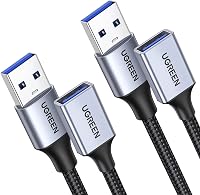
If the monitor stays blank, check the host port, HDMI input, cable, operating system support and display settings. A USB extension cable can also affect placement and signal reliability, so read what is a USB extension cable before adding one.
Which USB 3.0 hub with HDMI should you choose?
Choose the Anker Laptop Docking Station Dual Monitor if you need dual HDMI, Ethernet, memory card readers and a larger port set. Choose the Anker USB C Hub 7-in-1 if one 4K@60Hz display, 5Gbps data and card slots cover your setup.
Choose the Anker USB C Hub 5-in-1 when you want one HDMI output, 3 USB data ports and pass-through charging in a simpler layout. In every case, confirm the host port's video support before ordering.
The 8-in-1 model suits a desk that needs more than a display. It adds Ethernet and SD and microSD readers, which can reduce the number of separate adapters around a laptop.
The 7-in-1 model suits a single-screen setup with faster movement on the display. Its HDMI output supports 4K@60Hz, and its USB-A and USB-C data ports are rated at 5Gbps for files and accessories.
The 5-in-1 model suits a lighter routine. It keeps HDMI, USB data and charging in a compact layout, and its HDMI output supports up to 4K@30Hz rather than the smoother 60Hz rate.
When you choose, match the hub to the devices you use each day. Dual displays, wired networking and card reading point to the larger dock, while one display and a few accessories point to the smaller hubs.
Also check the host port, operating system and charger before you order. A hub cannot add video output when the computer lacks the required display support, and pass-through charging needs a suitable PD charger and cable.
If your setup is closer to a full desktop dock, read what is a Thunderbolt docking station to compare the wider connection class.