What Is an SD Card Reader?
An SD card reader is an adapter that lets a computer or mobile device access files stored on an SD card. It connects through USB, USB-C, or a built-in card slot and may also support microSD and other card types.
On this page (9 sections)
- What does an SD card reader do?
- How does an SD card reader connect to a computer?
- What is the difference between SD and microSD readers?
- Can you use an SD card reader with a laptop?
- What makes a good USB-C SD card reader?
- Can an SD card reader be part of a USB hub?
- How do you choose an SD card reader?
- How should you use and care for an SD card reader?
- What is the best SD card reader for your setup?
An SD card reader is a small device that connects a memory card to a computer or mobile device so you can open, copy, move, and back up files. The reader may use USB-A, USB-C, or a built-in card slot.
Most readers are useful for moving camera photos and videos to a laptop. Some also read microSD, CompactFlash, Memory Stick, or other formats, while simpler models support only SD and microSD.
What does an SD card reader do?
An SD card reader translates the card's stored data into a connection your computer can use. You insert the card into the matching slot, connect the reader, and open the card through your device's file manager.
A reader doesn't replace the memory card. It provides the physical card slot and connection needed by a device that lacks a compatible built-in slot.
The connection affects where you can use it. USB-A readers suit older computers and many desktop ports, while USB-C readers fit newer laptops, tablets, smartphones, and other USB-C devices.
If you need more ports along with card access, a USB hub can combine card slots with USB, HDMI, or charging connections.
How does an SD card reader connect to a computer?
An SD card reader connects through a built-in card slot, USB-A, or USB-C. Match the reader's plug to the port on your computer, or use a suitable hub if your device has limited ports.
USB 3.0 readers can offer data transfer rates up to 5 gigabits per second when the reader, port, card, and connection all support that standard. Actual transfers can be slower because the card and files also affect performance.
USB-C describes the connector shape and connection type. It doesn't automatically tell you the reader's speed, so check for a USB 3.0 or faster interface when moving large video files.
For USB-C devices, compare our guide to the best SD card reader with USB-C options. Laptop owners can also see the best SD card reader for laptop picks.
What is the difference between SD and microSD readers?
An SD card is the larger card format used in many cameras and other devices. A microSD card is smaller and is common in phones, action cameras, game devices, and compact cameras.
A reader with separate SD and microSD slots can read either card size directly. A reader with only an SD slot may need a passive microSD-to-SD adapter, while a microSD-only reader cannot accept a standard full-size SD card.
The SD card reader vs microSD card reader comparison explains which slot layout fits common devices. You can also compare best SD card reader micro SD options when both formats matter.
Which card slots should you look for?
Choose the slots that match the cards you already use. A standard SD slot is useful for many camera cards, while a microSD slot helps with smaller cards from phones, action cameras, and other compact devices.
Some multi-format readers include SD, microSD, CompactFlash, and Memory Stick slots. Those extra slots help if you manage cards from more than one camera system, but they add little value if you use only one card type.
The SmartQ SD Card Reader has 4 slots for SD, Micro SD or TF, CF, and MS cards. Its USB 3.0 interface and USB-C connection suit readers who move several card formats between compatible computers, tablets, and USB-C smartphones.
Can you use an SD card reader with a laptop?
Yes, you can use an external SD card reader with a laptop if the reader's plug matches an available port. Insert the card, connect the reader, and wait for the operating system to show the card before opening or copying files.
Some laptops have a built-in SD slot. An external reader is useful when that slot is missing, damaged, difficult to reach, or limited to a card format you don't use.
The how to use SD card reader in laptop guide covers the basic connection and file-transfer process. Keep the card level as you insert it, and eject it through the operating system before removing it.
What makes a good USB-C SD card reader?
A good USB-C reader has the right slots, a suitable transfer interface, and a plug that fits without blocking nearby ports. Size also matters if you carry it with a laptop or connect it to a phone.
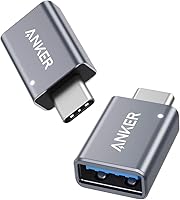
The Anker SD Card Reader USB C has one standard card slot and one microSD slot. Its USB-C connection, compact 1.65 x 0.67 x 0.37 in size, and 9 g weight suit people who want a small reader for USB-C devices.
Anker identifies it as compatible with devices such as MacBook 2018 and Galaxy S10, with Chrome OS and Mac OS support. Its 2-slot layout is simpler than a 4-in-1 reader, but it may be easier to carry when you only need SD and microSD access.
For Apple laptops, compare the best SD card reader for MacBook and best SD card reader for MacBook Air guides.
Can an SD card reader be part of a USB hub?
Yes, some USB hubs include SD and microSD card readers along with other ports. This setup can save space when you need card access, USB devices, display output, or charging from one USB-C connection.
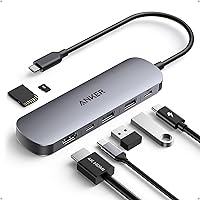
The Hiearcool 7-in-1 USB C Hub combines HDMI, USB 3.0, USB-C, SD, and TF card connections in a 4.17 x 1.4 x 0.34 in aluminum design. It supports 4K HDMI at 30 Hz, USB 3.0 transfer up to 5 gigabits per second, and USB-C power delivery up to 100 W.
This type of hub fits a desk or travel setup where one USB-C connection needs to handle several tasks. It is larger than a basic card reader, so it makes less sense if card transfers are your only need.
See the best USB 3.0 hub SD guide for hub-based card access. You can also compare the best USB hub with SD card reader, best SD card reader with HDMI, and best USB-C hub card reader options.
How do you choose an SD card reader?
Choose an SD card reader by checking your card format, device port, transfer needs, and whether you need extra connections.
- Use a basic SD reader if you move files from standard SD cards and already have the right USB port.
- Choose SD and microSD slots if you use cards from cameras, phones, or action cameras.
- Choose a multi-format model if you work with SD, CF, MS, and other supported cards.
- Choose a USB-C model for newer laptops, tablets, and smartphones.
- Choose a hub if you also need HDMI, USB ports, or charging.
For camera workflows, see best SD card reader cameras. Game camera owners can compare best SD card reader for game camera, while Kodak Pixpro FZ55 owners can use the best SD card reader for Kodak Pixpro FZ55 guide.
How should you use and care for an SD card reader?
Use the reader on a clean, dry surface and insert cards in the direction shown by the slot. Don't force a card if it stops, and don't remove it while files are copying.
When you're finished, close open files and eject the card through the computer or phone before disconnecting the reader. This reduces the chance of interrupting a file transfer.
A reader does not fix a damaged card or guarantee that every card format will work. If a card isn't recognized, check the slot, connection, card lock position, operating system, and another compatible device.
What is the best SD card reader for your setup?
The best SD card reader depends on the connection and cards you use. Choose SmartQ for 4 card formats and USB 3.0, Anker for a compact USB-C SD and microSD reader, or Hiearcool when you also need HDMI, USB 3.0, and power delivery.
An SD card reader is the simplest way to connect removable storage to a computer without replacing the card. Match the slots and connector first, then choose a basic reader or a hub based on the rest of your setup.
Frequently asked questions
What is an SD card reader used for?
An SD card reader lets a computer, tablet, smartphone, or other compatible device access files on an SD card. You can use one to copy photos, videos, documents, and other files between the card and the connected device, as long as the reader and card type match.
Is an SD card reader the same as an adapter?
An SD card reader is a device that reads the card and passes its data to a computer or mobile device. An adapter can mean the same thing in everyday shopping, but it can also mean a passive card-size adapter, such as a microSD-to-SD shell that does not connect to a computer by itself.
Can an SD card reader read microSD cards?
Many readers include a microSD or TF slot, but not all do. Check the slot labels before you buy.
A reader with both SD and microSD slots gives you more flexibility for cameras, phones, action cameras, and other devices that use different card sizes.
Do SD card readers work without special software?
Many USB SD card readers are plug and play, so the computer recognizes them without a separate driver. Your device still needs a compatible port and operating system, and the card itself must be inserted correctly and be readable.