USB-C to USB-A Adapter vs Hub: Which Should You Choose? (November 2026)
Choose a USB-C to USB-A adapter for one USB-A connection, or choose a USB-C hub when you need several ports, display output, cards or charging. The right USB-C to USB-A adapter or hub depends on how many devices you connect at once.
On this page (7 sections)
- USB-C to USB-A adapter or hub: what is the main difference?
- When should you choose a USB-C hub?
- How do USB-C adapters and hubs differ for data transfer?
- Which option is better for external displays?
- Which USB-C option is better for charging?
- How should you set up an adapter or hub?
- Adapter or hub: which should you buy?
Choose a USB-C to USB-A adapter for one USB-A device, or choose a USB-C hub for several ports and extra functions. An adapter solves a connector mismatch, while a hub expands one USB-C connection into a group of useful ports.
Think about a normal workday rather than a perfect desk. You may carry a laptop between home, an office and a client site.
In that setting, the smallest workable connection is often the best starting point. A tiny adapter can live in a laptop sleeve and solve the one problem you meet most often.
A hub makes more sense when the same port must serve a whole routine. That routine may include a display, storage, input devices, cards and power.
The simplest way to decide is to count what you need at the same time. A mouse or flash drive points to an adapter.
Those are single tasks that do not compete for extra ports. You connect the device, use it, and put it away without managing a larger setup.
A monitor, keyboard, storage drive, memory card and charger point to a hub. Each of those items adds a different kind of connection to the same port.
It helps to separate the jobs before you choose. USB-A access is about reaching older accessories, while data transfer is about moving files at a usable speed.
Display output is a separate job with its own limits. Charging is separate again, because passing power to a laptop is not the same as connecting a phone cable.
Size matters in daily use, especially on thin laptops with ports close together. A small adapter can leave room for another connection, while a hub may need space for cables.
Setup limits also shape the choice in practical ways. You still need a compatible computer port, a suitable cable and a charger where the hub requires one.
This comparison covers USB-A access, data transfer, display output, charging, size and setup limits. For the difference between an adapter and a cable, see our guide to USB-C to USB-A adapter or cable.
Consider who will use the connection most often. A student with one flash drive may value simplicity over extra options.
A photographer who moves cards and files all day may need reader slots built into the setup. A desk worker may care more about a stable display and laptop power.
Care is simple for either option, but it still matters. Keep connectors clean, avoid pulling cables sideways, and do not force a plug into a port.
Store a spare adapter where you will find it when a device fails. For a hub, keep the charger and display cable paired with it so the full setup works without hunting for parts.
The honest trade-off is scope against simplicity. An adapter does one conversion and stays out of the way, while a hub adds options and asks for more space, cables and checks.
Count what you need at the same time and let that count guide you. One accessory points to an adapter, and a group of connections points to a hub.

USB-C to USB-A adapter or hub: what is the main difference?
A USB-C to USB-A adapter gives you one converted connection, while a USB-C hub gives you several additional ports. The adapter is smaller and simpler, but the hub is more useful when one USB-C port must support a complete workstation.
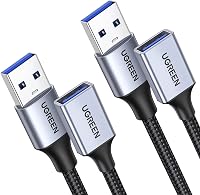
An adapter has a USB-C plug and a USB-A port. You connect one USB-A accessory, such as a mouse, printer, phone cable or external drive.
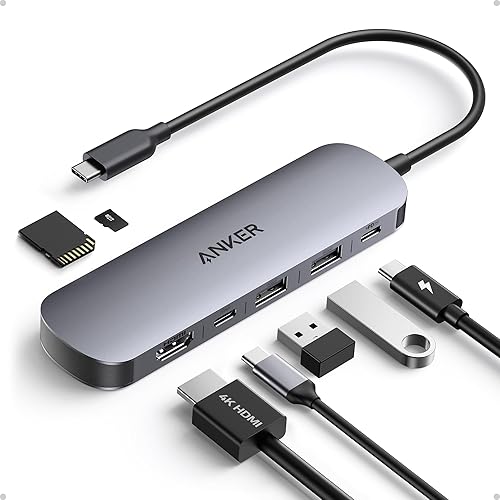
A hub connects to one USB-C port and exposes several other ports. Depending on the model, those ports may include USB-A, USB-C data, HDMI, SD, TF and USB-C Power Delivery input.
The USB hub and adapter buying guide explains the wider category, including the difference between adding ports and changing connector types.
When does a USB-C adapter make more sense?
An adapter makes more sense when you need one USB-A connection and want the smallest possible setup. It avoids unused ports, extra cables and a larger device hanging from your laptop.
The Anker USB C Adapter is a 2-pack with USB-C to USB-A 3.0 connectors. It supports 5Gbps data transfer and has a slim gray aluminum design measuring 1.03 x 0.57 x 0.3 inches.
It can fit 2 adapters side by side on compatible MacBook Pro USB-C ports. Its USB-A connection works for devices such as external hard drives, phones, mice, printers and other standard USB-A accessories.
The Apple USB-C to USB Adapter is another single-connection option. It connects standard USB accessories to compatible USB-C or Thunderbolt 3 USB-C ports on a Mac, iPad or iPhone.
Apple also describes use with a flash drive, camera or other standard USB device. It can connect a Lightning to USB cable for syncing and charging an iPhone, iPad or iPod.
For charging-focused use, our guide to the best USB-C to USB-A adapter for charging covers the details that matter, including the source device, cable and power limits.
When should you choose a USB-C hub?
Choose a USB-C hub when one USB-C port must connect several devices or add functions such as HDMI, card reading or pass-through charging. For a fuller desk setup, compare a USB hub with a docking station.
A hub takes more space, but it can reduce the number of connections you need to manage.
The Anker USB C Hub is a 7-in-1 model with HDMI, 2 USB-A 3.0 ports, a USB-C data port, SD and TF card slots, and a USB-C PD input. The data ports support 5Gbps, while the HDMI port supports up to 4K at 60Hz.
Its USB-C data port does not support video output. The computer must support USB-C with DP Alt Mode and Power Delivery for the listed display and charging functions.
The hub supports Windows and macOS computers with suitable USB-C, USB4 or Thunderbolt 3, 4 or 5 ports. It weighs 67 g and has a metal enclosure.
The Anker USB C Hub is a smaller 5-in-1 alternative. It has HDMI, 2 USB-A 5Gbps data ports, one USB-C 5Gbps data port and a USB-C 100W PD input for charging.
Its HDMI output reaches up to 4K at 30Hz. The USB-C data port does not support video, and the PD input does not support data devices such as headphones or speakers.
This model supports compatible USB-C, USB4 and Thunderbolt connections on supported Windows, MacBook and ChromeOS systems. It is not compatible with Linux.
How do USB-C adapters and hubs differ for data transfer?
Both can support fast data transfer, but the exact speed depends on the port and the connected device. For desktop expansion, compare the best USB 3.0 hubs for PCs.
A single adapter gives one USB-A path, while a hub shares its available connection across several active devices.
The Anker USB C Adapter uses a USB-A 3.0 connector and supports 5Gbps transfer. That is useful for one compatible storage device or accessory when the computer and device can also use that speed.
The 7-in-1 hub provides 2 USB-A 3.0 ports and one USB-C data port at 5Gbps. If you move files between several devices at once, the hub's connected devices share the host connection.
The 5-in-1 hub also provides 3 USB data ports at up to 5Gbps. Its HDMI and PD input serve different roles, so plugging a charger into the PD input does not turn that port into another data connection.
A hub can be the better choice for a fixed desk, but an adapter may keep one storage transfer path simpler. If you need an internal expansion option instead, see our guide to an internal USB 3.0 hub.
Which option is better for external displays?
A hub is the right choice when you need HDMI from the same USB-C connection. Compare a USB-C to HDMI adapter and hub if you are deciding whether you also need extra ports.
The single USB-C to USB-A adapters in this comparison do not add HDMI output.
The 7-in-1 Anker USB C Hub supports HDMI up to 4K at 60Hz. Only its HDMI port supports video projection, while the USB-C data port is for data transfer.
The 5-in-1 Anker USB C Hub supports HDMI up to 4K at 30Hz. Its USB-C ports do not support video output, so the display must connect through HDMI.
Video support also depends on the computer's USB-C port. Look for DP Alt Mode support before choosing a hub, and check the computer's display limits if you need a specific resolution or refresh rate.
Our guide to the best USB-C to HDMI adapter can help if display output is your main reason for adding a device.
Which USB-C option is better for charging?
A hub is better when you want to charge a compatible laptop through the same connection, while a simple adapter is better for connecting a cable or accessory. Neither choice removes the need to check the power path.
The 7-in-1 hub supports up to 85W laptop charging through its USB-C PD input. The charger is not included, so you must provide a compatible charger and connect it to the hub.
The 5-in-1 hub also supports up to 85W pass-through charging. Its USB-C 100W PD input is for charging only, and full iPad power requires a 45W wall charger according to the product information.
A USB-C to USB-A adapter can connect a Lightning to USB cable for syncing and charging compatible Apple devices. That is different from pass-through laptop charging because the adapter does not add a charging input for the computer.
For a complete dock-style setup, our guide on how to use a Dell DisplayLink docking station covers a larger connection approach.
How should you set up an adapter or hub?
Connect the adapter or hub directly to a suitable USB-C port, then attach one device at a time and confirm each function. Direct connection helps you identify whether the computer, accessory or expansion device is causing a problem.
For an adapter, insert the USB-C end into the computer and connect the USB-A accessory. Keep the adapter supported if a stiff cable puts strain on the computer's port.
For a hub, connect the hub first, then attach USB devices, display cables, memory cards or the charger. Avoid forcing a plug, and remove storage devices using the computer's safe-eject option when required.
A hub's ports do not all perform the same job. On the 7-in-1 model, the USB-C data port does not provide video.
On the 5-in-1 model, the PD input does not carry data.
If your computer is an all-in-one model, confirm which port is intended for accessories and which connection is for power. Our guide answers How Do You Connect the Power Adapter to an All-in-one Computer?.
Adapter or hub: which should you buy?
Pick a USB-C to USB-A adapter if you need one USB-A device, a small spare connection or a simple Apple accessory connection. The Anker USB C Adapter is the stronger fit for 2 adapters and 5Gbps USB-A access, while the Apple USB-C to USB Adapter suits compatible Apple devices and standard USB accessories.
Start with the Anker USB C Adapter if your main need is USB-A access. It comes as a 2-pack, so one can stay in a bag and the other can stay at a desk.
That spare matters in daily use, because a failed or forgotten connection can stop work. The slim gray aluminum design also helps on laptops where ports sit close together.
Its 5Gbps transfer speed suits compatible storage and accessories when the computer and device can use that rate. It remains a single-device connection, so it does not add ports for several accessories at once.
The Apple USB-C to USB Adapter fits a narrower routine. It is aimed at compatible Mac, iPad and iPhone use with standard USB accessories.
That focus can be an advantage when your devices and cables already sit inside one ecosystem. It can connect a flash drive, camera or other standard USB device without extra hub ports.
It can also connect a Lightning to USB cable for syncing and charging compatible devices. That should not be confused with laptop pass-through charging, which a simple adapter does not provide.
Pick a USB-C hub if you need several ports, HDMI, memory cards or laptop charging. Choose the 7-in-1 Anker USB C Hub for 4K at 60Hz, SD and TF slots, and more ports.
That hub suits a fuller desk where several jobs share one USB-C connection. Its ports include HDMI, 2 USB-A ports, a USB-C data port, card slots and a USB-C PD input for charging.
Check the computer before you rely on those functions. Video and charging depend on support for DP Alt Mode and Power Delivery, and the charger is not included.
Choose the 5-in-1 Anker USB C Hub for a smaller setup with HDMI, 3 USB data ports and 4K at 30Hz. It fits users who need display output and USB access without card slots.
Its trade-offs are clear in daily use. The HDMI limit is lower at 4K, the PD input is for charging only, and the model is not compatible with Linux.
The decision between a USB-C to USB-A adapter or hub is mainly about scope. One accessory needs an adapter.
A desk with several connections needs a hub. Match the choice to the routine you actually repeat, and the right option will be obvious.
Frequently asked questions
Is a USB-C to USB-A adapter the same as a hub?
No. A USB-C to USB-A adapter changes one USB-C port into one USB-A connection.
A USB-C hub adds several ports, and some hubs also provide HDMI, card slots or pass-through charging.
Choose the adapter for one device and the hub for a group of connections.
Should I buy a USB-C hub or adapter?
Buy a USB-C adapter when you only need to connect one USB-A device. Buy a USB-C hub when you need multiple USB-A devices, an external display, SD or TF cards, or laptop charging through one USB-C port.
Can a USB-C hub charge a laptop?
Some USB-C hubs support pass-through charging, but you need a separate charger and a compatible laptop port. The 7-in-1 Anker USB C Hub supports up to 85W laptop charging, while its charger is not included.
Check your laptop's Power Delivery support first.
Does every USB-C hub support HDMI?
No. HDMI depends on the hub design and the host device.
The 7-in-1 Anker USB C Hub has HDMI up to 4K at 60Hz, and the 5-in-1 Anker USB C Hub has HDMI up to 4K at 30Hz.
The computer must also support video through USB-C.