How to Scan Receipts on an iPhone
Use the Notes app on your iPhone to scan receipts, crop the edges, and save each scan as a PDF. Good lighting, a flat receipt, and clear file names make the copies easier to find later.
On this page (8 sections)
- How do you scan a receipt on an iPhone with Notes?
- How do you scan a receipt on an iPhone with Files?
- What is the best way to capture a clear receipt scan on an iPhone?
- How should you organize scanned receipts?
- When should you use a desktop receipt scanner?
- How do you choose between an iPhone and a receipt scanner?
- How can you keep receipt scans useful over time?
- What is the simplest receipt scanner on iPhone workflow?
Use the Notes app as your receipt scanner on iPhone: open a note, choose Scan Documents, capture the receipt, adjust the corners, and save the result. For receipts you need to find later, use a consistent file name and store the scan in a dedicated folder.
This method works well for a few receipts after shopping, travel, or a service visit. It also keeps the process simple because you can scan, review, and organize the document from the same phone.
How do you scan a receipt on an iPhone with Notes?
Notes can scan a receipt and save it as a PDF inside a note. You don't need to take a normal photo first.
- Open Notes and create a new note or open an existing one.
- Tap the camera button, then choose Scan Documents.
- Place the receipt on a flat surface.
- Hold the iPhone over the receipt and let the camera detect the page.
- Tap Keep Scan, or capture it manually with the shutter button.
- Adjust the corners if the automatic crop misses an edge.
- Tap Save to add the scan to the note.
If you have several receipts, scan each one into the same note only when they belong to one trip or expense group. Otherwise, separate notes can make later sorting easier.
Apple's guide to scanning documents with an iPhone explains the current Notes and Files steps. Menu names can vary slightly by iOS version.
How do you scan a receipt on an iPhone with Files?
Use Files when you want the receipt saved directly into a folder instead of a note. This is useful for folders such as Receipts, Taxes, Travel, or Business Expenses.
Open Files and go to the folder where you want to keep the document. Tap the More button, choose Scan Documents, capture the receipt, tap Keep Scan, and then tap Save.
Create a folder structure before scanning a large group. A simple system might use the year as the main folder, followed by months or categories.
Name files with the date, store, and purpose when you can. For example, 2026-10-20-office-supplies.pdf is easier to search than Scan 14.pdf.
What is the best way to capture a clear receipt scan on an iPhone?
Use even light, a flat receipt, and a straight camera angle. These three choices have more effect on readability than adding filters after the scan.
Place the receipt on a surface with enough contrast to show its edges. A dark surface can help with a white receipt, while a light surface may help with a dark or faded one.
Keep the iPhone parallel to the receipt instead of holding it at an angle. An angled view can make one side of the receipt look narrower and may cause the automatic crop to miss a corner.
Avoid direct flash when the paper is glossy. Reflections can hide the merchant name, tax, total, or transaction date.
Flatten curled receipts gently before scanning. Don't crease thermal paper or press so hard that ink transfers to another surface.
How do you fix a blurry receipt scan on an iPhone?
Retake a blurry scan instead of trying to read missing text later. Hold the phone still, improve the light, and move the iPhone slightly farther away if the camera cannot focus.
Check the smallest text before tapping Save. The total, date, store name, and payment details are the fields most likely to matter during an expense review.
If the receipt is faded, capture it against a plain background and avoid shadows from your hands or the phone. A second scan with better light is often more useful than a heavy edit.
How should you organize scanned receipts?
Save receipts by year and purpose, then use the same naming pattern every time. Consistency matters more than a complicated filing system.
You could use folders such as:
- Receipts/2026/Household
- Receipts/2026/Business
- Receipts/2026/Travel
- Receipts/2026/Returns
Add the date and store name to the file name. If the receipt supports a business expense, add a short category such as supplies, meals, or equipment.
Keep the original paper when a return, warranty, tax rule, or company policy requires it. A phone scan is a useful copy, but it doesn't change the rules that apply to the purchase.
Review the scan before recycling the receipt. Make sure the entire page is visible and that the saved PDF opens correctly from its folder.
When should you use a desktop receipt scanner?
An iPhone is convenient for small batches, while a desktop scanner makes more sense for repeated stacks of receipts. A dedicated scanner can reduce the amount of manual positioning when you have many documents.
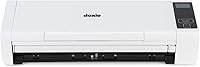
The Doxie Pro has automatic two-sided scanning, a 20-page collapsible feeder, and a direct feed slot for business cards, photos, thick paper, or delicate paper. It scans at up to 22 pages per minute and supports text recognition, automatic cropping, rotation, and contrast boost.
Doxie Pro measures about 12.01 by 3.94 by 2.95 inches and weighs 3 pounds. Its software works with Mac and PC and can import, organize, adjust, save, and share scans.
Choose it when you want a smaller desktop workflow for receipts and other paper. Keep using the iPhone when you only have a few receipts or need to scan away from a desk.
The Epson RapidReceipt RR-620W is built for larger document groups. It has Wi-Fi and USB connections, a 100-sheet automatic document feeder, a 4.3-inch color touchscreen, and double-sided scanning at up to 45 pages per minute.
Epson includes ScanSmart AI PRO Technology for extracting and converting receipts and documents into smart, AI-ready data. It also supports financial integrations such as QuickBooks, TurboTax, and Excel.
Choose this model when batch size and direct workflow options matter more than a pocket-sized setup. Its listed dimensions are 11.6 by 6.7 by 6.6 inches, and it weighs 8.2 pounds.
The RICOH fi-8040 is an office and desktop scanner for documents, receipts, ID cards, business cards, embossed cards, and paper. It scans double-sided pages at 40 pages per minute and includes a touchscreen, PaperStream software, OCR, and DirectScan.
The fi-8040 connects through Ethernet or USB and can scan to destinations such as email and network folders without a computer through DirectScan. Its standard sheet capacity is 50, and its listed system requirements include Windows 11, Windows 10, and selected Windows Server versions.
Choose it when an office network workflow matters. At 11.5 by 5.6 by 6.2 inches and 6.8 pounds, it needs more desk space than an iPhone but is suited to repeated document intake.
For more desktop options, compare our home printer buying guide and learn how a receipt scanner and printer fits a paper-handling setup.
How do you choose between an iPhone and a receipt scanner?
Choose the iPhone for occasional receipts and choose a desktop scanner for repeated batches. Your daily volume, file destination, and need for text recognition should guide the decision.
An iPhone is the better fit when you want to scan one receipt immediately after a purchase. It also works well when you need a portable process and don't want another device on your desk.
Doxie Pro suits a home or office user who wants a compact wired scanner with duplex scanning and software for Mac and PC. Epson suits larger jobs because its feeder holds 100 sheets and its scan speed reaches 45 pages per minute.
Ricoh suits an office that needs OCR, Ethernet or USB, and direct scanning to network destinations. Its Windows requirements are more specific, so check your computer environment before choosing it.
If your main need is business record keeping, see our guides to the best receipt scanner for small business and the best receipt scanner for QuickBooks. For searchable text, compare the best receipt scanner with OCR software.
How can you keep receipt scans useful over time?
Check every scan before deleting the paper, and back up important PDFs. A scan is only useful if the file opens and the key details remain readable.
Use folders with clear names and avoid saving every document as a generic scan. If you share receipts with an accountant or employer, keep the original file name pattern so the records stay easy to match.
For regular paper work, a receipt scanner can reduce repeated phone positioning. For occasional purchases, the iPhone remains the fastest choice because the camera and storage are already with you.
A printer or photo workflow may help with other paper tasks. See our guides to the best monochrome laser printer for home office, best photo printer for phone, and best portable photo scanner when your needs go beyond receipts.
What is the simplest receipt scanner on iPhone workflow?
Scan with Notes or Files, review the edges and text, name the PDF, and save it in a dated folder. That process is enough for most occasional receipt records.
Use Notes when the receipt belongs with other information in a note. Use Files when you want a folder-based archive.
Move to a desktop scanner when you regularly process stacks of paper. Choose Doxie Pro for a compact duplex setup, Epson for a 100-sheet feeder and faster batches, or Ricoh for an office workflow with OCR and network destinations.
Frequently asked questions
Can I scan a receipt with my iPhone?
Yes. Open the Notes app, create or select a note, tap the camera button, choose Scan Documents, and hold the receipt inside the frame.
Adjust the corners if needed, tap Keep Scan, then tap Save to keep the receipt inside the note as a PDF.
How do I scan a receipt on an iPhone without Notes?
Use the Files app when you want the scan saved directly to a folder. Open Files, tap the More button, choose Scan Documents, capture the receipt, adjust the corners, tap Keep Scan, and select the folder where you want to save the PDF.
What is the best format for scanned receipts?
PDF is usually the most useful format for receipts because it keeps the page together and works well for folders, email, and record keeping. Use a photo format only when you need a quick image or an app specifically requires JPEG or another image type.
How can I make iPhone receipt scans easier to read?
Place the receipt on a flat, dark surface with even light and keep the iPhone parallel to the paper. Avoid shadows and glare, check every edge before saving, and retake the scan if small print or totals are not clear.