Can Wireless Printers Be Used with a Cable?
Yes, many wireless printers can be used with a cable through a USB connection. A wired setup can connect the printer directly to one computer when Wi-Fi printing is unavailable.
On this page (7 sections)
- How can wireless printers be used with a cable?
- When is a cable better than wireless printing?
- Which wired printer setup suits a home office?
- Is USB useful when you only print black and white?
- What should you check before using a printer cable?
- What happens to phones and tablets with a USB setup?
- Can wireless printers be used with a cable when Wi-Fi fails?
Yes, many wireless printers can be used with a USB cable. The cable connects the printer directly to one computer, which helps when Wi-Fi is unavailable, unreliable, or difficult to configure.
Wireless capability does not mean a printer must be used wirelessly. Many models keep both options available at once, so you can use the connection that suits the job in front of you.
A USB link is often the simplest choice for a single desk. You avoid network passwords, searching for the printer on Wi-Fi, and wondering why another device cannot see it.
It also suits people who print from one main computer. A student, home worker, or small office can keep the machine close by and print without depending on the router staying stable.
The trade-off is reach. The cable ties the printer to one place and usually to one computer, so it does not suit a room where several people need access.
Wi-Fi can stay ready for other supported devices. That mix lets a nearby computer use the cable for dependable local jobs while laptops or mobile devices connect wirelessly when they are needed.
Choose the cable when order and simplicity matter more than shared access. Choose wireless when flexibility matters more and the network already works well at home.
How can wireless printers be used with a cable?
Connect the printer to a computer with a compatible USB cable, install the printer software, and choose the USB printer when printing. The exact cable type and setup steps depend on the printer and computer ports.
A USB connection is local. It normally lets the connected computer print, but it does not automatically make the printer available to every device on your network.
That local nature is the point for a desk setup. The computer talks to the printer through the cable, so printing does not need to pass through the router or a wireless network.
Before buying a cable, check the ports on both ends. A printer may use a USB port while your computer uses USB-A, USB-C, or another port.
Check the shape and the connector on each end, not just the cable length. A cable that looks right can still fail if the computer side uses a different port than expected.
If your computer needs an adapter, confirm that it supports data transfer rather than charging only. A charging-only adapter may fit the port yet carry no print signal at all.
Keep the run short enough to avoid strain on both ports. A cable that is too tight can pull loose, while a very loose cable can snag on desk items.
Install the printer software or driver before you print. When the computer lists more than one version of the same printer, pick the USB or local entry for cable printing.
For broader buying advice, use this home printer buying guide to compare connection types, printing needs, and all-in-one features.
When is a cable better than wireless printing?
A cable is better when one computer sits near the printer and dependable local printing matters most. It can also help during Wi-Fi setup, router changes, or wireless troubleshooting.
USB printing reduces the number of network steps between the computer and printer. You don't need to find the printer on the wireless network, enter a network password, or troubleshoot whether the printer and computer are using the same network.
The trade-off is flexibility. A cable can limit where you place the printer and usually serves one directly connected computer at a time.
Wi-Fi is more useful when several people need to print from different rooms.
A wireless printer can still be a practical choice for a cable-first setup. You can begin with USB, then configure Wi-Fi later when shared printing becomes useful.
Can wireless printers be used with a cable for color printing?
Yes, a USB connection can support color printing when the printer itself supports color output. The connection method doesn't turn a color printer into a black-and-white model or remove its scanning and copying functions.
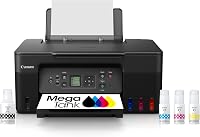
The Canon MegaTank G3270 combines wireless print, copy, and scan functions with a USB hardware interface. It prints color and black-and-white documents, uses a 1.35-inch square LCD display, and supports smartphones and tablets as compatible devices.
Its single-sided printing suits readers who don't need automatic two-sided output. Canon also states that one set of inks can print up to 6,000 black-and-white pages or 7,700 color pages, with up to 2 years of ink included.
The G3270 is a sensible fit when you want an ink-tank color printer for home documents, copies, and scans, but still want a direct computer connection if wireless printing is unavailable.
Which wired printer setup suits a home office?
A home office usually benefits from USB for one main computer and Wi-Fi for laptops or mobile devices. That gives you a reliable local option without giving up shared printing.
The Epson EcoTank ET-2800 has wireless connectivity, USB hardware, and print, scan, and copy functions. Its refillable ink tanks are designed for home use, and Epson states that the included ink can print up to 4,500 black pages and 7,500 color pages per bottle set.
The ET-2800 prints up to 10 black-and-white pages per minute and 5 color pages per minute. It supports computers, laptops, and smartphones over the home network, while USB gives a nearby computer another connection path.
Epson recommends genuine ink to support print quality and performance. Consider this model if lower replacement frequency and color capability matter more than fast document output.
Readers comparing shared home setups can also see our guide to the best wireless printer for home office. If the printer will serve a family rather than one desk, the best wireless printer for home use offers another useful comparison.
Is USB useful when you only print black and white?
Yes, USB is useful for a black-and-white printer when you want a fast, direct connection to one computer. It can be a good match for forms, shipping labels, school work, and other text-heavy documents.
The Brother HL-L2405W is a print-only monochrome laser printer with a USB interface. It prints one-sided black-and-white documents at up to 30 pages per minute and has a 250-sheet paper tray plus a manual feed slot.
Brother describes the HL-L2405W as supporting both dual-band wireless and a local USB connection to one computer. Its compatible devices include laptops, PCs, smartphones, tablets, and iPhone, although the local cable setup is centered on the directly connected computer.
This model fits a desk where document speed and black-and-white output matter more than color, copying, or scanning. Its compact dimensions can also help when desk space is limited.
For a shared workplace, compare options in our guide to the best wireless printer for office use. If your main computer is a MacBook, see the best wireless printer for MacBook before choosing a connection.
What should you check before using a printer cable?
Check the printer port, computer port, operating system support, and cable length before setting up USB printing. A cable that fits physically may still be unsuitable if it doesn't carry data or if the computer lacks the required software.
Keep the printer close enough that the cable won't pull on either device. Avoid sharp bends and route the cable where it won't catch on chair legs or foot traffic.
Install the printer's software or driver when prompted. If the computer shows several printer entries, select the one identified as USB or local rather than the wireless version.
USB printing doesn't usually replace the printer's normal power connection. You still need the printer's power cord, and you should follow the setup instructions for turning the printer on before connecting or disconnecting cables.
If your computer only has USB-C ports, an adapter may be necessary. Our guide to USB-C to HDMI adapter or cable explains why cable and adapter choices depend on the ports and signal they carry, although HDMI itself isn't a printer connection.
What happens to phones and tablets with a USB setup?
Phones and tablets may not print through the same USB setup used by a computer. Mobile printing often depends on Wi-Fi, a brand app, or a supported mobile connection.
A cable connected to a desktop or laptop doesn't automatically create a wireless printer network. If mobile printing matters, keep the printer's Wi-Fi features in your buying decision and check whether your device is supported.
The Canon G3270 supports smartphones and tablets, and the Brother HL-L2405W lists smartphones, tablets, and iPhone among its compatible devices. Those details don't mean every mobile device uses the same setup, so follow the brand's instructions for the device and operating system.
For phone-focused shopping, compare the best wireless printer for iPhone before choosing a cable-first arrangement.
Can wireless printers be used with a cable when Wi-Fi fails?
Yes, a USB connection can keep printing available when Wi-Fi fails, as long as the printer supports USB and a suitable computer is nearby. This is most useful for urgent documents that don't need mobile or shared access.
Use USB as a direct fallback during router problems, wireless setup errors, or changes to your home network. Once Wi-Fi is working again, you can switch back to wireless printing for laptops and mobile devices.
Choose the Canon MegaTank G3270 for color printing plus copying and scanning. Choose the Epson EcoTank ET-2800 for a refillable color all-in-one aimed at home use.
Choose the Brother HL-L2405W for fast, one-sided black-and-white printing from a nearby computer.
The key decision is simple: pick USB for one dependable local connection, and pick Wi-Fi when several devices need shared access.
Frequently asked questions
Can a wireless printer be connected with a USB cable?
Yes. Many wireless printers also include a USB hardware interface, so you can connect the printer directly to a computer with a compatible USB cable.
The cable connection usually serves the connected computer, while phones, tablets, and other computers may still need Wi-Fi or another supported connection.
Does a USB cable make a printer wireless?
No. A USB cable creates a wired connection between the printer and a computer.
It doesn't extend wireless coverage or let other devices print through Wi-Fi by itself.
If you want several devices to print without moving the cable, set up the printer on your wireless network.
Can I use a wireless printer without Wi-Fi?
Often, yes, if the printer supports USB printing and you have a computer with the required port and software. You may lose direct wireless printing from phones and tablets, though.
Check the printer's connection options and install its software before relying on a cable-only setup.
Is USB or Wi-Fi better for a printer?
USB is useful for one nearby computer and avoids wireless setup problems. Wi-Fi is more convenient when several computers, laptops, or mobile devices need access.
Choose USB for a simple local connection, or Wi-Fi when shared printing matters more than the shortest setup.