How to Choose a Receipt Scanner and Printer
Choose a receipt scanner and printer by separating the scanning job from the printing job. Prioritize duplex scanning, OCR, feeder capacity and connections, then add a printer that fits your document and photo needs.
On this page (7 sections)
- What should you look for in a receipt scanner and printer?
- How much receipt scanning do you need to do?
- Why do duplex scanning and OCR matter?
- Which connection fits your workspace?
- What printer should you pair with the scanner?
- How should you set up a receipt scanning workflow?
- Which receipt scanner and printer setup should you choose?
A receipt scanner and printer setup works best when the scanner handles paper capture and the printer handles physical output. Look for duplex scanning, OCR, a useful document feeder and the connections your workflow needs before choosing a printer.
A scanner does not automatically print, and a printer does not automatically organize receipts well. You may get better results from a dedicated scanner paired with a separate printer, especially if you scan receipts often but print only occasionally.
For broader printer and scanner decisions, start with our home printer buying guide.
What should you look for in a receipt scanner and printer?
Choose a receipt scanner and printer combination by matching each device to its main job. The scanner should reduce paper handling, while the printer should produce the documents or images you actually need.
Focus on these features:
- Duplex scanning for two-sided receipts and documents
- OCR for searchable or editable text
- An automatic document feeder for multiple pages
- A direct-feed slot for thick or delicate paper
- USB, Wi-Fi or network connections that fit your workspace
- Software or workflows for saving files to useful destinations
- Printer functions that match your output, such as documents, labels or photos
Printing features are separate from scanning features. If you print invoices, forms or reports, a document printer may be enough.
If you print family photos, compare models in our best photo printer for home guide.
How much receipt scanning do you need to do?
Your paper volume determines whether a compact scanner or a larger feeder makes more sense. Light receipt users can choose a smaller wired model, while busy offices benefit from higher capacity and faster duplex scanning.
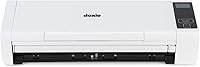
The Doxie Pro has a 20-sheet automatic document feeder and scans at up to 22 pages per minute. Its collapsible feeder and direct-feed slot suit a home office that handles receipts, invoices, business cards, photos or delicate paper.
The Epson RapidReceipt RR-620W has a 100-sheet feeder and scans at up to 45 pages per minute. That capacity is better suited to larger batches of receipts and documents, particularly when Wi-Fi or computer-free scanning is useful.
The Ricoh fi-8040 has a 50-sheet feeder and scans 40 double-sided pages per minute. Its direct scanning options and network connection suit office workflows that send files to destinations such as email or network folders.
Why do duplex scanning and OCR matter?
Duplex scanning captures both sides in one pass, while OCR turns scanned text into searchable or editable data. Together, they reduce manual sorting when receipts include notes, totals or information on the back.
Doxie Pro includes automatic duplex scanning, text recognition, automatic cropping, rotation and contrast boost. Its software can import, organize and send scans to Dropbox, Evernote, OneNote and iCloud.
Epson's ScanSmart AI PRO technology extracts and converts receipts and documents into smart, AI-ready data. Epson also describes integration with QuickBooks, TurboTax and Excel, which may help if your financial workflow depends on categorized receipt data.
Ricoh's fi-8040 includes OCR, image enhancement and indexing options. PaperStream software is designed for quick scanning and sending to email, print or a folder.
If searchable receipt files are your main goal, compare more options in our best receipt scanners with OCR software. If you use QuickBooks, our best receipt scanners for QuickBooks guide focuses on that workflow.
Which connection fits your workspace?
The right connection depends on where the scanner sits and where the files need to go. USB is simple and direct, Wi-Fi adds placement flexibility, and Ethernet can suit a shared office network.
Doxie Pro uses USB and includes a compact wired footprint. It measures about 11.75 by 4 by 3 inches and weighs just over 3 pounds, so it can fit a small home office where the scanner stays near the computer.
Epson's RapidReceipt RR-620W supports USB and Wi-Fi. Its ScanWay touchscreen can send scans to email, cloud storage or a connected USB flash drive without requiring a computer for every scan.
Ricoh's fi-8040 uses Ethernet and USB. DirectScan supports scanning to destinations such as email and network folders through a network connection, which is useful when several people share one scanner.
For occasional scanning without a dedicated scanner, see our guide to a receipt scanner on iPhone. Phone scanning can be convenient, but a document feeder is usually easier for a large stack.
What printer should you pair with the scanner?
Pair the scanner with a printer based on what you print most often, not on the fact that you scan receipts. Receipt capture and physical printing are different tasks.
Choose a document-focused printer if you mainly print invoices, forms, shipping pages and reports. Wireless connectivity can help when several computers or mobile devices send print jobs, so compare our best wireless printer for home use guide.
Choose a photo printer if printed images are a regular part of your home workflow. A photo printer may offer the output you want for pictures, while the receipt scanner preserves paper records digitally.
You might not need to print receipts at all. A searchable PDF or categorized digital record may be enough for taxes, bookkeeping and expense tracking.
Keep a printer only if your work also requires paper copies.
If you scan old family pictures as well as receipts, our guide to a photo scanner on iPhone covers a simpler mobile option.
How should you set up a receipt scanning workflow?
A good workflow starts with sorting paper before scanning and choosing a consistent file destination afterward. This keeps receipts easier to find and reduces repeated scans.
Start by separating receipts from invoices, statements, business cards and photos. Remove clips or folds that could interfere with feeding, then use a direct-feed slot for thick or delicate paper when the scanner supports it.
Create a naming pattern that includes the date, seller and purpose. For example, a file name can identify a purchase without requiring you to open every PDF later.
Choose searchable PDF when you need to find text. Use image formats when you need a visual copy, such as a photo or a receipt whose layout matters more than searchable text.
Review the first few scans before processing a large batch. Check that the paper is straight, both sides appear when needed and the destination folder is correct.
Which receipt scanner and printer setup should you choose?
Choose Doxie Pro for a compact home or small-office workflow, especially when a 20-sheet feeder, direct-feed slot and simple USB connection cover your needs.
Choose Epson RapidReceipt RR-620W for larger batches and flexible destinations. Its 100-sheet feeder, up to 45 ppm duplex scanning, Wi-Fi and touchscreen make it the strongest fit here for higher-volume receipt work.
Choose RICOH fi-8040 for a shared office workflow that benefits from Ethernet, direct scanning, OCR and a 50-sheet feeder.
The best receipt scanner and printer setup is the one that matches both sides of your workflow. Pick the scanner by paper volume and file handling, then choose the printer by the documents or photos you still need on paper.
For a small-business workflow, continue with our best receipt scanner for small business guide.
Frequently asked questions
Do I need a printer with a receipt scanner?
You may not need a printer built into the same device. A dedicated receipt scanner usually gives you better paper handling and OCR, while a separate printer lets you choose the right model for documents, photos or wireless home use.
Pick an all-in-one only when copying and printing are part of the same regular workflow.
What is the best feature in a receipt scanner?
Duplex scanning is one of the most useful features because it captures both sides of a receipt or document in one pass. OCR, automatic cropping, a document feeder and direct scanning options also matter.
Choose based on your paper volume and where you want the finished files to go.
Can a receipt scanner scan other documents?
Yes. Receipt scanners can also handle invoices, statements, business cards and other paper documents when the model supports those media types.
Check the feeder size and direct-feed options if you also plan to scan photos, thick paper, delicate receipts or ID cards.