Bluetooth vs Wireless Keyboard and Mouse: Which Is Better? (November 2026)
Choose Bluetooth to save a USB port and a receiver combo for simple plug-and-play setup. For a wireless keyboard and mouse, Bluetooth connects directly to a compatible computer, while a receiver uses a small USB adapter.
On this page (9 sections)
- Bluetooth vs wireless keyboard and mouse: what is the difference?
- Which connection is easier to set up?
- Which option saves more USB ports?
- Which connection works better for switching between devices?
- Which is better for travel and a small desk?
- Can you mix a Bluetooth keyboard with a receiver mouse?
- Which keyboard and mouse features matter beyond connection?
- Which products show the connection trade-offs?
- How do you choose between Bluetooth and a USB receiver?
Choose Bluetooth to save a USB port and a USB receiver combo for simple plug-and-play setup. In a Bluetooth vs wireless keyboard and mouse comparison, the main difference is how the devices connect to your computer.
Bluetooth pairs directly with a compatible computer, so the keyboard and mouse don't need a USB receiver. A receiver-based combo plugs an adapter into a USB port to connect its devices.
The right choice depends on your computer's ports and Bluetooth support, how often you move the set, and whether you prefer pairing or a receiver. If you're comparing complete sets, our best keyboard and mouse combo guide covers other features to weigh.
 Best for saving a USB port
Logitech MK250 Wireless Bluetooth Keyboard and Mouse
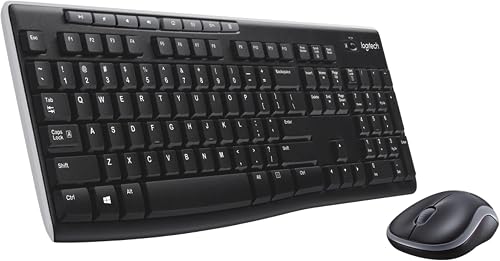 Best for familiar full-size typing
Logitech MK270 Full Size Wireless Keyboard
Bluetooth vs wireless keyboard and mouse: what is the difference?
Bluetooth is a wireless connection; USB receiver combos use a small adapter instead. Both let you use a keyboard and mouse without cables between them and the computer.
A Bluetooth keyboard or mouse connects through the computer's Bluetooth settings. You pair each device, then the computer keeps track of that connection.
A USB receiver sends the connection through a small adapter in a USB port. Some combos use one receiver for both the keyboard and mouse, such as the Logitech MK270 and MK470.
The term “wireless” describes the lack of a cable, not one specific connection method. A Bluetooth keyboard is wireless, and a keyboard that uses a USB receiver is wireless too.
Does a wireless keyboard and mouse always use Bluetooth?
No, wireless keyboard and mouse combos can use Bluetooth or a USB receiver. Check the connection type before you buy, especially if your computer has limited ports.
For example, the Logitech MK250 connects over Bluetooth without a dongle. The Logitech MK540 uses a mini USB Unifying receiver, while the MK470 uses a USB nano receiver.
If a listing or package says only “wireless,” look for details about Bluetooth, USB, receiver or 2.4 GHz connectivity. Those terms tell you what you need to connect the set.
Which connection is easier to set up?
A receiver is often simpler for a single computer with an available USB port; Bluetooth avoids the adapter but requires pairing. Choose based on how your computer is set up and how comfortable you are with its Bluetooth settings.
With a receiver combo, plug the adapter into a compatible USB port and follow the device instructions. The receiver can be easy to leave connected to a desktop or laptop that stays in one place.
Bluetooth setup usually starts in the computer’s Bluetooth settings. Put the keyboard or mouse into pairing mode and select it from the available devices; follow its instructions if a code or extra step appears.
Some computers don't have Bluetooth built in, or Bluetooth may be turned off. For those computers, a receiver-based combo can be a more direct option if there's a compatible USB port.
What if Bluetooth pairing fails?
Check that Bluetooth is enabled, the device is in pairing mode and it isn't already connected elsewhere. Restarting pairing from the computer's Bluetooth settings can also help.
The exact steps depend on the computer and keyboard or mouse. If the device doesn't appear, consult its instructions and check whether the computer's operating system supports it.
A receiver can avoid Bluetooth pairing, but it still needs a working USB port and compatible devices. It also needs to stay with the computer when you move the combo.
Which option saves more USB ports?
Bluetooth saves the port used by a receiver, which matters when your computer has few open USB ports. A receiver combo needs at least one compatible port while connected.
That can matter on a laptop already using ports for an external drive, webcam or charging cable. Choosing Bluetooth may leave a port free for another device.
A receiver-based set may still be a good fit if you have an open port or use a USB hub. Our USB hub guide can help you think through adding ports, but check the hub's compatibility and power needs for your setup.
A Bluetooth set isn't automatically a better choice if you never run short of ports. A receiver that stays plugged in can make setup simple on a desk computer.
Which connection works better for switching between devices?
Bluetooth is usually the more flexible fit when you need to connect to a computer without a free USB port. For switching between multiple computers, check whether the exact keyboard and mouse support that feature.
Bluetooth devices can be paired through compatible computer settings. However, pairing by itself doesn't mean a keyboard or mouse can switch between devices with a button.
Receiver combos commonly connect through their included adapter. If you move between computers, you'll need a way to connect the receiver to each one, or to pair the devices another way if they support it.
Don't assume a keyboard and mouse use the same connection features just because they come in one box. Check the connection method and switching controls for both devices.
Which is better for travel and a small desk?
Bluetooth can be convenient when you travel with a laptop and want to leave the receiver behind. A compact receiver combo is also practical if its adapter can remain with the laptop.
The Logitech MK250 is compact and uses Bluetooth, with a keyboard that still includes a number pad, arrow keys and F-key shortcuts. Its mouse has an ambidextrous shape.
The Logitech MK470 uses a USB nano receiver and pairs a compact keyboard with low-profile scissor keys. Its quiet operation and slim design may suit a small desk where keyboard noise is a concern.
Compare quiet keyboard and mouse combos for other options.
If desk lighting matters to you, see our best backlit keyboard and mouse combo guide. Backlighting is a separate feature from whether the devices connect through Bluetooth or a receiver.
Can you mix a Bluetooth keyboard with a receiver mouse?
Yes, if your computer supports Bluetooth and the receiver connection, and both devices are compatible with it. You can connect a Bluetooth keyboard and plug a separate mouse receiver into a USB port, or reverse the arrangement.
The computer manages each connection independently. That means you can choose devices based on how you type and use a mouse rather than matching their connection types.
For example, you might want a wired keyboard and wireless mouse at a fixed desk. Our guide to a wired keyboard and wireless mouse explains how that combination works.
If you want one coordinated set, our Logitech MK540 Advanced review looks at a full-size receiver combo with an integrated palm rest.
Which keyboard and mouse features matter beyond connection?
Choose the connection first, then compare layout, size, shape and power details. A wireless method can't make an uncomfortable keyboard or an awkward mouse a good fit.
A full-size layout with a number pad may suit frequent spreadsheet or number entry. Compact keyboards can leave more room on the desk, though the layout may feel different from a standard keyboard.
If you type for long stretches, compare keyboard shape and wrist support. Our guide to an ergonomic keyboard and vertical mouse combo explains which design details to consider.
Battery setup also varies across combos. For a keyboard you can recharge instead of replacing batteries, compare options in our best rechargeable mouse and keyboard combo guide.
Which products show the connection trade-offs?
The Logitech MK250 is the Bluetooth example here, while the MK270, MK470 and MK540 use USB receivers. Compare their layouts and comfort features alongside the connection method.
The MK250 fits a computer where Bluetooth is available and an open USB port is more useful for something else. The MK270 suits a desk where a familiar full-size keyboard and single receiver are priorities.
The MK470 gives you a compact keyboard with a number pad and a USB receiver. The MK540 uses a receiver too, but adds a palm rest to its full-size keyboard.
How do you choose between Bluetooth and a USB receiver?
Pick Bluetooth if your computer supports it and you want to keep a USB port free; pick a receiver if you prefer that setup or don't have Bluetooth. Then confirm the keyboard layout and mouse shape fit your routine.
For a portable Bluetooth-only set, consider the Logitech MK250 Wireless Bluetooth Keyboard and Mouse. If you prefer a full-size layout and receiver, the Logitech MK270 Full Size Wireless Keyboard is another option to compare.
If you choose a receiver set, note where the adapter goes and whether you'll need it when using another computer. If you choose Bluetooth, check pairing support and operating system compatibility.
For Bluetooth vs USB receiver keyboards and mice, start with ports and compatibility, then choose the layout you want. Bluetooth reduces receiver clutter, while USB receiver combos offer a direct connection through an adapter.
If your next decision is keyboard fit and layout, begin with our computer keyboard buying guide. For a keyboard that needs new keycaps, read the Logitech MX Keys keycap replacement guide.
Frequently asked questions
Is Bluetooth or a USB receiver better for a keyboard and mouse?
Bluetooth is better when you want to save a USB port and your computer supports Bluetooth. A USB receiver is a straightforward choice when you have an available port and want a combo designed to connect through one adapter.
Check connection type and computer compatibility before choosing.
Can a Bluetooth keyboard and mouse work without a USB receiver?
Yes. A Bluetooth keyboard and mouse can connect directly to a computer with Bluetooth, so a receiver isn't required.
The Logitech MK250 is a Bluetooth-only example.
Check that your computer supports Bluetooth and follow its pairing steps for each device.
Do wireless keyboards and mice always use Bluetooth?
No. Wireless keyboards and mice may use Bluetooth or a USB receiver connection.
Receiver-based combos such as the Logitech MK270, MK470 and MK540 use a USB adapter, while the MK250 connects over Bluetooth without one.
Can I use a receiver keyboard with a Bluetooth mouse?
Yes, if the computer supports both connection types and the devices are compatible with it. The keyboard can connect through its USB receiver while the mouse pairs over Bluetooth.
This mixed setup can use fewer USB ports than a receiver for each device.
What should I check before buying a wireless keyboard and mouse?
Check whether your computer has Bluetooth or a free USB port, then confirm the combo's connection type and operating system compatibility.
Also consider keyboard size, number pad, mouse shape and desk space. A receiver-based combo needs the adapter available when you use it.


