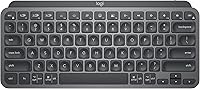
How to Replace Logitech MX Keys Keycaps
For a Logitech MX Keys keycap replacement, confirm the keyboard model and get a compatible keycap before gently lifting or pressing anything. The mechanisms can be fragile, so stop if a key resists or its support looks damaged.
On this page (8 sections)
- How do you identify the right replacement keycap?
- What should you check before removing a keycap?
- How do you remove a Logitech MX Keys keycap?
- How do you install a replacement keycap?
- What if the replacement key won't fit?
- Which Logitech keyboards should you consider if a repair isn't practical?
- When should you ask Logitech for help?
- What is the safest way to replace an MX Keys keycap?
For a Logitech MX Keys keycap replacement, identify the exact keyboard model and confirm the replacement cap fits that model and key position. Handle the key gently because its support mechanism can be fragile.
If a keycap has popped off, resist the urge to press it back immediately. A cap may look similar to another, but its clips and the mechanism below it need to match.
How do you identify the right replacement keycap?
Check the keyboard's exact model before looking for a replacement. “MX Keys” can refer to different keyboards, including full-size models, Mac versions, and the compact MX Keys Mini.
Look for the model name or number on the keyboard, its packaging, or its documentation. When you contact support or a parts seller, include the model and a clear photo of the key and its position.
Key position matters, too. A replacement for a letter key may not fit a larger key such as Shift or Enter, even on the same keyboard.
Ask for confirmation about both the model and the specific key.
If you use a compact keyboard and are comparing layouts, our Logitech MX Keys Mini review can help you understand how that model differs from a full-size board.
Are Logitech MX Keys replacement keycaps universal?
No, don't assume that MX Keys replacement keycaps are universal. The cap shape, attachment points, key size, and underlying mechanism can vary by model and position.
Check that a replacement is specifically confirmed for your exact keyboard. A cap that appears to fit may not attach securely, and forcing it could damage the support beneath it.
For a broader view of keyboard layouts and features, see our complete guide to the best keyboard for computer use.
What should you check before removing a keycap?
Check the keyboard's manual or ask Logitech support whether the cap is meant to be removed. Some keys may be difficult to detach without damaging the clips or support mechanism.
Before touching the key, disconnect the keyboard or switch it off. Clear the work area and take a photo of the key's position so you can refer to it when installing the replacement.
Avoid pulling with your fingernails, tweezers, or a metal tool. A plastic keycap puller may be suitable if the manual or support confirms removal is appropriate, but use only light, even pressure.
What if the keycap is still attached?
Don't remove an attached cap just to inspect underneath unless you have confirmed the method is safe for that model. If the key still works, there may be no need to disturb its mechanism.
If the cap is loose or crooked, stop typing on it and check whether it can be seated gently without pressure. If it won't sit flat, ask Logitech support or a repair professional to assess it.
How do you remove a Logitech MX Keys keycap?
Only remove a keycap if the instructions for your specific model allow it. Power off the keyboard, position the recommended tool evenly under the cap, and lift slowly without twisting.
- Switch off or disconnect the keyboard.
- Check the manual or support instructions for the key.
- Position the approved tool under the cap as directed.
- Lift with gentle, even pressure.
- Stop immediately if the cap resists or the support moves.
The mechanism may be delicate. Don't pry against the keyboard frame, twist the cap from one corner, or use extra force to overcome resistance.
If the cap releases, inspect the visible clips and support without poking or bending them. A broken or displaced part needs repair or a suitable replacement, not pressure to make it look aligned.
How do you install a replacement keycap?
Match the cap's clips to the supports and use only gentle pressure to seat it. Follow model-specific instructions, since the attachment method can differ between keyboards and keys.
Check that the replacement faces the right direction and sits level. If it doesn't line up easily, lift it off only if the instructions permit and recheck its orientation.
Press evenly and lightly. Stop if you hear a crack, see a clip bend, or feel unusual resistance; those are reasons to get help rather than push harder.
After installation, test the key with a light press. If it sticks, sits at an angle, or fails to respond, stop using it and contact support or a repair professional.
What if the replacement key won't fit?
Stop if the cap doesn't align or attach with light pressure. Recheck the model, key position, row, and orientation with the seller or Logitech support.
Don't trim clips or alter the cap to make it fit. That can leave the key loose or damage the keyboard's mechanism.
A key that won't fit may be the wrong part, or the support beneath the cap may be damaged. Ask for a replacement matched to the exact model, or seek repair help if the mechanism looks broken.
If a battery issue is also affecting your keyboard, see how to replace a Logitech MX Keys battery. Battery work won't fix a loose or damaged keycap mechanism.
Which Logitech keyboards should you consider if a repair isn't practical?
If the cap or support is damaged beyond a simple replacement, compare the keyboard's layout and key type before deciding whether to repair or replace it. These Logitech options have different designs, so their keycaps aren't interchangeable by default.
The compact MX Keys Mini pairs with up to 3 devices over Bluetooth Low Energy and has backlit keys. Its smaller layout may suit you if portability matters.
The MX Mechanical has low-profile mechanical switches and a full-size layout. Its mechanical key structure is different from MX Keys, so don't use its keycaps as replacements for an MX Keys keyboard.
The MX Keys S for Mac has a Mac key layout and backlit keys. If you're comparing Mac-specific features, read our Logitech MX Keys for Mac review.
For more Logitech options, browse our guide to the best Logitech wireless keyboard. If backlighting for a Windows PC is your priority, see our best backlit keyboard for Windows guide.
When should you ask Logitech for help?
Contact Logitech support when you can't confirm compatibility, the mechanism looks damaged, or the cap won't attach gently. Provide the model number, key position, and a clear photo of the keyboard.
Avoid using the keyboard if a loose part could fall inside or interfere with nearby keys. Don't glue the cap in place; adhesive can prevent proper movement and make later repair harder.
What is the safest way to replace an MX Keys keycap?
For a Logitech MX Keys keycap replacement, confirm the precise model and key, follow model-specific removal instructions, and stop if anything resists. That approach helps protect the fragile supports under the cap.
Pick a compatible replacement if the mechanism is intact. Contact Logitech or a repair professional if clips are broken, the key won't sit level, or you're unsure how to remove it.
Frequently asked questions
Can you replace keycaps on a Logitech MX Keys?
A damaged keycap may be replaceable, but compatibility depends on the exact MX Keys model and the key's position. Check with Logitech support or a replacement-parts seller using the model number and a clear photo.
Don't force a cap onto the keyboard if its clips or mechanism don't line up.
Are MX Keys and MX Keys Mini keycaps interchangeable?
Don't assume MX Keys and MX Keys Mini keycaps are interchangeable. Their layouts and key sizes differ, and a cap's fit can also depend on its row and position.
Confirm compatibility for your exact keyboard model and the specific key before ordering or attempting installation.
How do you remove a Logitech MX Keys keycap safely?
First check the keyboard manual or ask Logitech support whether the cap is designed to come off. If removal is appropriate, power the keyboard off, use a suitable plastic keycap tool, and lift gently and evenly.
Stop if the cap resists, tilts, or exposes a loose or broken support.
Can you use MX Mechanical keycaps on MX Keys?
Don't treat MX Mechanical and MX Keys keycaps as compatible. The MX Mechanical uses low-profile mechanical switches, while MX Keys keyboards use a different key structure.
Use only a replacement confirmed for your keyboard's exact model and key position.