USB-C to HDMI Adapter vs Cable: Which Should You Choose? (November 2026)
Choose a direct USB-C to HDMI cable for a simple display connection, or choose an adapter when you want a detachable setup or extra ports. Your device must support USB-C DisplayPort Alt Mode for either option.
On this page (7 sections)
- USB-C to HDMI adapter or cable: which is simpler?
- USB-C to HDMI adapter cable versus hub: what changes?
- Which option gives the best display quality?
- Does cable length matter?
- Can these products charge the connected device?
- How do you set up a USB-C to HDMI adapter or cable?
- USB-C to HDMI adapter or cable: which should you choose?
Choose a direct USB-C to HDMI cable for the simplest display connection, or choose an adapter when you want to reuse HDMI cables. A hub makes more sense when you also need USB ports or laptop charging.
The choice comes down to how you want to build the connection. A direct cable keeps the setup to one lead with no separate HDMI cable to carry, join or replace.
An adapter keeps the USB-C side short and detachable. You can pair it with HDMI cables of different lengths and swap the HDMI cable if it wears out.
A hub suits a desk where the display is only part of the job. It can add USB ports and pass-through charging, but it also brings more to plug in and power.
The key requirement is the same for both formats. Your USB-C source must support DisplayPort Alt Mode, USB4 or a compatible Thunderbolt connection with video output.
That check matters before you buy anything. A USB-C port that only handles charging or data will not send a picture to a display through these products.
This comparison covers detachable adapters, direct cables and a 5-in-1 hub. We checked display support, cable length, charging, port needs and daily setup differences.
Use the format that fits the room and the way you move between places. A fixed desk often suits a direct cable, while a laptop used in several rooms may suit an adapter.
Think about the full chain each time. The laptop, the port, the cable or adapter, the display input and the settings on both ends all shape the result you see.
A simple plan helps at a glance. Direct cable for one known display, adapter for reusable HDMI cables, and hub when extra ports or charging are part of the same setup.


USB-C to HDMI adapter or cable: which is simpler?
A direct cable has fewer connection points, while an adapter gives you a replaceable HDMI cable. Pick the format that matches how often you move the display setup.
With a direct USB-C to HDMI cable, one end connects to the computer or mobile device and the other connects to the display. There is no separate HDMI cable to pack, match or replace.
An adapter connects to the USB-C source and uses a standard HDMI cable between the adapter and display. That adds one connection, but it also lets you change HDMI cable length without replacing the adapter.
A compact adapter can be useful in a laptop bag. The best USB-C to HDMI adapter options make sense when you already have HDMI cables at home, work or in a meeting room.
When should you choose an adapter?
Choose an adapter if you want a detachable setup, already own HDMI cables or use displays with different cable lengths. It can also be easier to replace one HDMI cable than a complete USB-C to HDMI cable.
The Anker USB C to HDMI Adapter supports video up to 4K@60Hz. It has a lightweight aluminum casing and a reinforced braided-nylon cable, but it does not support charging or Power Delivery.
An adapter does not automatically add USB ports. If you need more connections, compare it with a USB hub that matches your laptop and accessories.
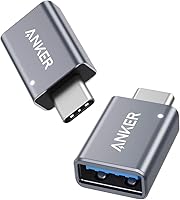
For a single USB-A connection, see how a USB-C to USB-A adapter or hub compares.
When should you choose a direct cable?
Choose a direct cable when the display location is known and you want fewer parts. A 10 ft cable can be useful when the computer sits on one side of a desk and the monitor, TV or projector is farther away.
The Acer USB C to HDMI Cable is a 10 ft, one-way cable for a USB-C source and HDMI display. It supports up to 4K@60Hz, has a braided design and does not charge the connected device.
The JSAUX USB C to HDMI Cable 10FT also supports up to 4K@60Hz. Its stated features include HDR, HDCP 2.2, 32.4Gbps bandwidth, a double-braided nylon jacket and aluminum connectors.
USB-C to HDMI adapter cable versus hub: what changes?
A USB-C to HDMI adapter or cable adds display output, while a hub can add display output, USB ports and charging. Extra features are useful only when your device and desk need them.
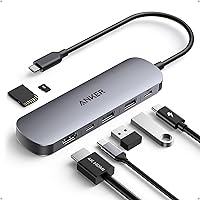
The Anker USB-C Hub is a 5-in-1 unit with HDMI, a USB-C Power Delivery input, 1 USB-A 3.0 port and 2 USB-A 2.0 ports. Its HDMI output supports up to 4K@30Hz in mirror and extend modes.
The hub accepts 100W total input and reserves 10W for operation, allowing up to 90W pass-through charging to the laptop. The wall charger is not included, and the USB-C input is for powering the laptop rather than peripheral devices.
This hub supports Windows 10 and 11, macOS 12 and newer, ChromeOS and laptops with DP Alt Mode and Power Delivery. It is not compatible with Linux.
If your display is the only accessory, a hub may add cost, size and setup steps you don't need. If you connect storage, a keyboard or a mouse at the same time, its extra ports can reduce cable clutter.
Our guide to a USB 3.0 hub with HDMI explains how to compare display output with USB data ports.
Which option gives the best display quality?
The Anker adapter and both direct cables support up to 4K@60Hz, while the Anker USB-C Hub supports up to 4K@30Hz. Choose based on the refresh rate you want and the other ports you need.
Resolution and refresh rate describe different things. Resolution is the detail on screen, while refresh rate is how often that image is redrawn during movement.
A 60Hz output usually feels steadier for desktop movement, scrolling and video playback. Cursor motion and transitions tend to flow more smoothly at the higher rate.
The hub's 4K@30Hz output can still suit a basic office display, presentation screen or TV. It is a closer match when you mainly need documents, slides or a fixed screen to stay readable.
Do not treat 4K as the whole story. A sharp but less fluid image can suit reading and forms, while fast motion may show the limits of a lower refresh rate more clearly.
The source device and display also affect the result. A cable cannot create a resolution or refresh rate that the computer's USB-C port or display does not support.
Your laptop, tablet or phone sets the ceiling for video output. The display then needs an HDMI input and settings that accept the resolution and refresh rate the source can send.
Check both ends before you order. Look for DisplayPort Alt Mode, USB4 or compatible Thunderbolt video support on the USB-C port, and check the display manual for its HDMI input limits.
USB-C alone does not promise video. A display that supports 4K may still need the right input or setting selected before it shows the full output.
The Acer cable does not support HDR. That trade-off matters when your display and source support HDR and you want brighter highlights and wider contrast in compatible viewing.
The JSAUX cable includes HDR among its stated features, along with 48-bit deep color, 3D and HDCP 2.2. Those features can suit films and other HDR material when the rest of the setup supports them.
If your setup needs HDR, do not assume every 4K cable supports it. Check the display's HDMI input and the source's video settings before choosing.
Mirror and extension modes also change how the output feels in daily use. Mirroring suits a presentation or TV, while extension suits focused work across two screens.
Pick the output for the tasks you will actually do. A 4K@60Hz connection gives more headroom for movement, and the hub trade-off may be worth it when its ports and charging fit your desk.
Does cable length matter?
Choose the shortest cable that reaches comfortably, but use 10 ft when the display sits across a desk or room. Extra length helps routing, yet it can leave more cable to manage.
Length is about the route, not just the straight distance. A cable may need to pass behind a monitor, around a stand or along a wall before it reaches the HDMI input.
The Acer and JSAUX cables are both 10 ft long. That reach can help when a laptop sits on one side of a desk and the display sits farther away.
A long cable also helps with a TV or projector placed across a room. You can keep the source in a comfortable spot without leaving the lead pulled tight at either end.
Measure the path from the USB-C port to the HDMI display, including the route around a desk, stand or wall-mounted TV. A little slack at each connector makes the setup easier to adjust later.
The JSAUX HDMI connector measures about 0.79 x 0.69 x 0.18 in. Check clearance if the HDMI port is recessed, close to a wall or beside another connector.
Connector shape can matter as much as cable length. A large head may not sit well in a tight row of ports or behind a display mounted close to the wall.
A detachable adapter gives you more length choices because you can pair it with a separate HDMI cable. That setup is useful when one display is close and another is several feet away.
An adapter also lets you change the HDMI cable without replacing the USB-C side. That can suit a laptop that moves between a desk, a meeting room and a living room TV.
Excess length still needs care. Loop or route the extra cable so it stays clear of chair wheels, drawer edges and feet, and avoid sharp bends near the connectors.
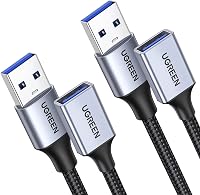
Do not confuse a USB extension cable with a video cable. Our explanation of what is a USB extension cable covers why extending a USB connection is a different task from sending video to HDMI.
Plan the route before you plug anything in. The right length should reach without strain, fit the port space and leave a tidy path for daily use.
Can these products charge the connected device?
The Anker USB-C Hub supports up to 90W pass-through charging, but the Anker adapter and both direct cables do not charge the source device. Display output and charging are separate functions.
The Anker USB C to HDMI Adapter is for video output and does not support charging or Power Delivery. The Acer cable also has no power supply and cannot charge the device.
The JSAUX cable does not support charging or data transfer. It is a uni-directional USB-C source to HDMI screen connection.
If your laptop has only one USB-C port and must stay powered while connected to HDMI, a hub with a USB-C PD input may be the better fit. Confirm that your laptop supports charging through that port.
A full docking setup is a different category again. Compare a USB hub and docking station before choosing a desk connection for several devices.
Read what is a Thunderbolt docking station before choosing a dock for several displays, storage devices and high-power accessories.
How do you set up a USB-C to HDMI adapter or cable?
Connect the USB-C end to a video-capable USB-C port and the HDMI end to the display, then select the correct HDMI input. No driver installation is required for the plug-and-play products described here.
Before connecting, check the device manual for DP Alt Mode, USB4 or Thunderbolt video support. If your source has a DisplayPort output instead, compare a DisplayPort to HDMI adapter vs cable.
A USB-C port can look the same as a video-capable port while supporting only charging or data.
For an adapter, connect the HDMI cable to the adapter first if that makes the ports easier to reach. For a direct cable, keep the cable's USB-C end at the source and its HDMI end at the display because these products are one-way.
If the screen stays blank, check the display input, reseat both connectors and try another HDMI input. You can also test the setup with another compatible computer or display to isolate the source, cable or screen.
Avoid bending the cable sharply at either connector. Keep the route free from chair wheels, drawer edges and tight hinges that can pull on the USB-C port.
USB-C to HDMI adapter or cable: which should you choose?
Pick a direct cable when you want one simple connection, pick the Anker adapter when you want a compact detachable setup, and pick the Anker USB-C Hub when you need charging and USB-A ports.
For a 10 ft route, the Acer cable is a straightforward 4K@60Hz option, while the JSAUX cable adds stated HDR support and a double-braided jacket. For a 4K display at 60Hz, the direct cables and Anker adapter have the stronger match than the hub's 4K@30Hz output.
Choose the product around the complete setup, not just the word HDMI. Confirm video support on the USB-C port, measure the cable path, check the display input and decide whether charging or extra ports matter.
If the device is an iPhone, compare the options in our guide to the best USB-C to HDMI adapter for iPhone. For an iPad, see the best USB-C to HDMI adapter for iPad guide.
Frequently asked questions
Is a USB-C to HDMI adapter better than a cable?
A USB-C to HDMI cable is simpler because it combines both connections in one lead. An adapter is better when you already own HDMI cables, want a shorter removable connection, or may reuse the adapter with displays in different places.
Both need a USB-C port with DisplayPort Alt Mode.
Does a USB-C to HDMI adapter charge a laptop?
A basic USB-C to HDMI adapter does not charge the laptop. The Anker USB C to HDMI Adapter specifically does not support charging or Power Delivery, while the Anker USB-C Hub supports up to 90W pass-through charging through its USB-C PD input.
Do USB-C to HDMI cables work with every USB-C port?
No. The USB-C port must support DisplayPort Alt Mode or a compatible USB4 or Thunderbolt connection that can provide video output.
A USB-C port used only for charging or data won't send a picture through a USB-C to HDMI cable.
Which USB-C to HDMI cable is best for a 10 ft setup?
The Acer USB C to HDMI Cable and JSAUX USB C to HDMI Cable 10FT both provide a 10 ft connection and support up to 4K@60Hz. Choose JSAUX if HDR and its double-braided design matter, or Acer if you prefer its stated compatibility range and braided cable.