HP 280 Silent Mouse Review: Worth It? (November 2026)
The HP 280 Silent Wireless Mouse suits everyday desk work if you want quieter clicks, a right-handed shape and a USB-A receiver. Choose a Bluetooth alternative if you want to connect without using a USB port.
On this page (7 sections)
The HP 280 Silent Wireless Mouse is a good fit for everyday desk work if you want quieter left and right clicks, a right-handed shape and a USB-A receiver. Its main trade-off is the receiver: choose Bluetooth if your computer has no free USB-A port.
The HP 280 combines a 1600 DPI optical sensor, three-button navigation and an integrated scroll wheel. Its receiver stores inside the mouse, and HP specifies up to 18 months of use from one AA battery.
What does the HP 280 Silent Mouse offer?
The HP 280 is a right-handed, three-button wireless mouse with quieter clicks and a USB-A nano receiver. It suits common office tasks such as browsing, spreadsheets and document work.
HP 280 Silent Wireless Mouse: Best for quiet everyday desk work
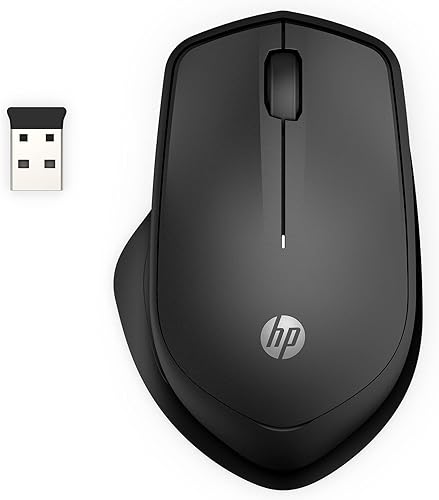
- Up to 90% quieter left and right clicks
- 2.4 GHz USB-A receiver
- Right-handed ergonomic design
- 1600 DPI optical sensor
- Up to 18-month battery life
A quiet, right-handed mouse with a stored USB receiver and multi-surface tracking for everyday work. It needs a USB-A port.
Pros
- Up to 90% noise reduction on left and right buttons
- Receiver stores inside the mouse
- Works with Windows, Chrome and Mac OS
- Multi-surface tracking
Cons
- Right-handed shape doesn't suit left-hand use
- Uses a USB-A receiver rather than Bluetooth
HP says the left and right buttons reduce noise by up to 90% while retaining a satisfying click feel. That claim applies to those two buttons; it doesn't describe every sound the mouse may make.
The 1600 DPI optical sensor provides tracking that HP describes as precise, and the sensitivity can be customized to match your work style. Multi-surface technology is designed to track on virtually any surface, so a mouse pad may not be necessary.
Who is the HP 280 Silent Mouse best for?
The HP 280 fits people who use a mouse with their right hand and prefer a familiar USB receiver connection. The built-in storage for the nano receiver also helps if you move the mouse between a home desk and a bag.
It isn't the best match for a left-handed user or a computer without an available USB-A port. For other options, compare our guide to the best silent mouse for computer.
How does its USB connection affect setup?
The HP 280 connects through a 2.4 GHz USB-A receiver, so setup depends on having a compatible port. HP gives a wireless range of up to 32.8 ft.
Insert the nano receiver into a USB-A port, then use the mouse with a compatible computer. The receiver stores inside the mouse when you pack it away, which reduces the chance of losing the small piece during travel.
Some newer laptops have limited ports or only USB-C. Check your computer before choosing a receiver-based mouse, and use a compatible adapter if you need one.
If you want a mouse that connects without a dongle, the Logitech M240 below uses Bluetooth. That can free a USB port, provided your computer supports Bluetooth.
Is the HP 280 comfortable for long desk sessions?
The HP 280 has an ergonomic, right-handed shape with a three-button layout and integrated scroll wheel. Its design targets comfortable all-day use, but fit depends on your hand and grip.
The shape is a practical match for right-handed users who prefer a conventional mouse layout. Left-handed users should look for an ambidextrous option, such as the M240, rather than trying to adapt to this right-handed form.
A mouse's dimensions and shape matter more than broad comfort claims. If possible, compare its listed dimensions with a mouse that already feels comfortable in your hand.
For a full desk setup, our computer keyboards buying guide covers how to choose a keyboard that pairs well with your work habits.
How quiet are the clicks?
HP says the HP 280's left and right buttons reduce noise by up to 90% while retaining a satisfying click feel. That makes it a reasonable choice for a shared office, a quiet room or work near other people.
The percentage describes button noise, not total silence. Scroll wheel movement and contact with the desk can still make sound, so consider those if you need a nearly silent setup.
A quiet mouse also depends on what matters most to you: button sound, hand fit or connection type. Our guide to best silent switches for mouse explains what to compare when click noise is your main concern.
What battery life and tracking should you expect?
HP specifies up to 18 months from one AA battery for the HP 280. Battery life is a maximum claim, so actual time can vary with use and conditions.
The mouse comes with one AA battery, according to its included components. Keeping a spare nearby can help avoid a work interruption when the battery eventually needs replacing.
The 1600 DPI optical sensor and multi-surface technology are aimed at reliable everyday tracking. If the pointer feels too fast or slow, adjust the cursor settings on your computer before deciding the sensor doesn't suit your work.
How does the HP 280 compare with two alternatives?
The HP 280 is the right-handed USB receiver choice among these three. The M240 stands out for compact Bluetooth use, while the M330 offers a full-size right-handed alternative with contoured grips.
| Mouse | Connection | Shape | Quiet-click claim | Battery |
|---|---|---|---|---|
| HP 280 Silent Wireless Mouse | 2.4 GHz USB-A | Ergonomic, right-handed | Up to 90% less noise on left and right buttons | 1 AA, up to 18 months |
| Logitech M240 Compact Silent Bluetooth Wireless Mouse | Bluetooth | Compact, ambidextrous | 90% reduced click sound | 1 AAA, up to 18 months |
| Logitech M330 Silent Plus Full Size 2.4 | 2.4 GHz USB-A | Full size, right-handed | Over 90% less clicking sound | 1 AA, up to 18 months |
Logitech M240 Compact Silent Bluetooth Wireless Mouse
The M240 is the compact option if you want Bluetooth without a dongle. Its ambidextrous shape can suit either hand, and it works with several platforms, including Windows, macOS, Linux, ChromeOS, iPadOS and Android.
Logitech M240 Compact Silent Bluetooth Wireless Mouse: Best for compact Bluetooth use

- Bluetooth connection
- Up to 90% reduced click sound
- Ambidextrous compact design
- Up to 18-month battery life
A small Bluetooth option for desks where you want to save a USB port or switch between right- and left-hand use.
Pros
- Pairs without a dongle
- Ambidextrous shape
- Works with Windows, macOS, Linux, ChromeOS, iPadOS and Android
Cons
- Compact shape may feel small in a larger hand
- Bluetooth is required
Choose it if your computer supports Bluetooth and you want to keep a USB port free. Compare more options in our guide to the best silent mouse for Mac.
Logitech M330 Silent Plus Full Size 2.4
The M330 is a full-size, right-handed alternative with contoured plastic grips and a USB-A receiver. Logitech says its SilentTouch technology reduces clicking sounds by over 90%.
Logitech M330 Silent Plus Full Size 2.4: Best for full-size right-hand comfort

- Over 90% less clicking sound
- Right-handed contoured grips
- USB-A receiver
- Up to 18-month battery life
A full-size Logitech alternative with contoured grips and a USB-A receiver for a quiet desk setup.
Pros
- Over 90% clicking sound reduction
- Contoured grips
- Auto-sleep mode
Cons
- Right-handed design
- Requires a USB-A port
It shares the HP 280's receiver-based connection and up to 18-month battery claim. Consider it if a full-size shape and contoured grips matter more to you than an ambidextrous design.
Should you choose the HP 280 Silent Mouse?
Choose the HP 280 if you want a right-handed mouse with quieter clicks, a USB-A receiver and multi-surface tracking. Its stored receiver and single AA battery also suit a desk setup that occasionally travels.
Pick the M240 if you want compact Bluetooth use or an ambidextrous shape. Choose the M330 if you prefer a full-size right-handed mouse with contoured grips, or compare more choices in our best wireless mouse for HP laptop guide.
A rechargeable mouse pad is a separate accessory question: don't assume a pad can charge this mouse, which uses an AA battery. For brand-specific alternatives, see our guide to the Razer silent mouse.
Frequently asked questions
Is the HP 280 Silent Mouse quiet?
HP says the left and right buttons reduce noise by up to 90% while keeping a satisfying click feel. That makes the HP 280 a sensible choice for shared rooms, calls or quieter work areas, though the scroll wheel and other sounds aren't covered by that button claim.
Does the HP 280 Silent Mouse use Bluetooth?
No, the HP 280 connects through a 2.4 GHz USB-A nano receiver. The receiver stores inside the mouse for travel, but you'll need an available USB-A port or a compatible adapter; choose a Bluetooth mouse if you want a connection without a receiver.
Can you use the HP 280 Silent Mouse with a Mac?
The HP 280 is listed as compatible with Mac OS, as well as Windows and Chrome. It connects through USB-A, so check the ports on your Mac and use a compatible adapter if needed; the Logitech M240 is an alternative with Bluetooth.
Does the HP 280 Silent Mouse need a mouse pad?
HP says the mouse's multi-surface technology tracks on virtually any surface, so a mouse pad isn't required for every desk. Surface performance can vary, so if tracking is uneven on your desk, try a clean, flat pad.