7 Best Wireless Mice for Mac and MacBook (November 2026)
The best wireless mice for Mac and MacBook include the Logitech M240 Compact Silent Bluetooth Wireless Mouse for quiet Bluetooth use, the Logitech G305 Lightspeed Wireless Gaming Mouse for Mac gaming, and the Logitech Lift Vertical Ergonomic Wireless Mouse for a vertical grip.
On this page (4 sections)
The Logitech M240 Compact Silent Bluetooth Wireless Mouse is the best wireless mouse for a Mac for most people who want quiet clicks and a connection that leaves USB ports free. For gaming, choose the G305; for a vertical grip, consider the Lift; and for a larger right-hand fit, look at the M650 L.
Mac desktops and MacBooks can use a wireless mouse over Bluetooth or with a USB receiver. The right choice depends on which connections you have available, how you hold a mouse and whether you want features such as quiet clicks, adjustable sensitivity or a vertical shape.
If you need a bigger set of pointing options for a portable computer, compare these picks with our best wireless mouse for laptop guide. For a matching input setup, our best keyboard for computer guide covers keyboard layouts and connection choices.
Our picks at a glance
-
1
 Best for quiet Bluetooth use
Logitech M240 Compact Silent Bluetooth Wireless Mouse
9.7/10 our score
See it on Amazon -
2
 Best for Mac gaming
Logitech G305 Lightspeed Wireless Gaming Mouse
9.7/10 our score
See it on Amazon -
3
 Best for a vertical grip
Logitech Lift Vertical Ergonomic Wireless Mouse
9.5/10 our score
See it on Amazon
- 4
 Check it
Logitech Signature M650 L Full Size Wireless
Best for larger right hands - 5
 Check it
Logitech M185 Compact Ambidextrous 2.4 GHz Wireless
Best for receiver simplicity - 6
 Check it
Azmall LED Bluetooth Wireless Mouse for MacBook
Best for lighting and dual connections - 7
 Check it
Kovess Bluetooth Wireless Mouse for MacBook Mac
Best for multiple connection modes
Which wireless mouse for Mac fits each use?
The M240 is the best fit for simple Bluetooth use, while the G305 suits gaming and the Lift offers a vertical shape. The seven picks below cover different hand sizes, connection preferences and desk setups.
Logitech M240 Compact Silent Bluetooth Wireless Mouse: Best for quiet Bluetooth use
- Bluetooth connection
- 90% reduced click sound
- Ambidextrous compact shape
- Up to 18-month battery life
The M240 pairs over Bluetooth without a receiver, which suits MacBooks with limited ports. Its compact, ambidextrous shape and quieter clicks fit shared spaces and travel.
Pros
- No receiver or port required
- Works with macOS
- Quiet clicks
Cons
- Compact shape may not suit larger hands
- Uses a replaceable AAA battery
The M240 is the easiest pick here if you want a Bluetooth mouse with no receiver. It pairs with macOS and leaves your MacBook's ports available for charging, storage or a display.
Its compact, ambidextrous shape is easy to carry between home, work and travel. Logitech says its clicks make 90% less noise than a standard Logitech mouse, and the battery can last up to 18 months with auto sleep.
The tradeoff is size: a compact mouse may feel cramped if you prefer to rest most of your hand on the body. It uses one AAA battery, so consider whether you prefer replacing batteries or charging a mouse.
Choose the M240 for quiet everyday pointing on a MacBook or desktop Mac. It is also a useful travel pick when carrying a USB receiver would be inconvenient.
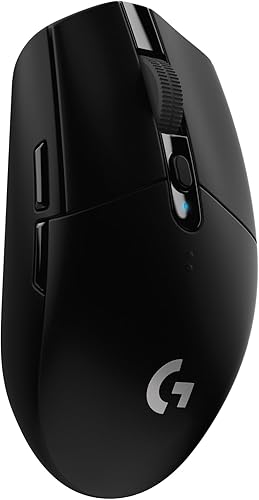
Logitech G305 Lightspeed Wireless Gaming Mouse: Best for Mac gaming
- LIGHTSPEED USB receiver
- Up to 12,000 DPI
- 6 buttons
- Up to 250 hours on 1 AA battery
The G305 is a gaming-focused option with a USB receiver, 6 buttons and adjustable sensitivity up to 12,000 DPI. It suits a Mac setup where gaming control matters more than a receiver-free connection.
Pros
- High adjustable sensitivity
- USB receiver stores inside the mouse
- Mac compatibility is stated
Cons
- Needs a USB port or suitable adapter
- Gaming features may be unnecessary for office work
The G305 is the gaming choice for Mac users who want adjustable sensitivity and a USB receiver. Its HERO sensor offers up to 12,000 DPI, and LIGHTSPEED wireless is designed for a 1 ms report rate.
It has six buttons and weighs 3.4 oz, according to Logitech G. The nano receiver stores inside the mouse, which makes it easier to pack with a gaming laptop or desktop setup.
This model is a better fit for gaming than for a minimalist MacBook setup. Its receiver needs a compatible USB connection, and some Macs may need an adapter.
Choose it when game control matters more than Bluetooth convenience. If you mainly browse or edit documents, the M240 or M650 L has a more work-focused feature set.
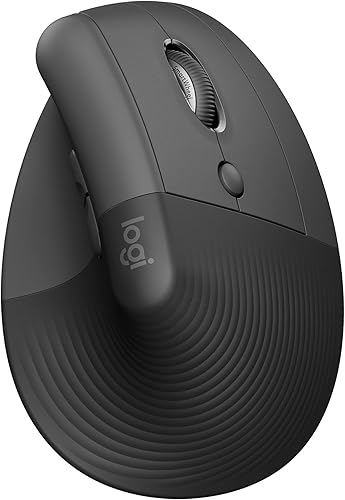
Logitech Lift Vertical Ergonomic Wireless Mouse: Best for a vertical grip
- 57-degree vertical shape
- Bluetooth Low Energy or Logi Bolt USB
- Right-hand design for small to medium hands
- Up to 2 years battery life
The Lift gives your hand a 57-degree upright position and has a thumb rest. It is designed for small to medium right hands, so check the hand fit before choosing it.
Pros
- Bluetooth and USB receiver options
- Right-hand vertical shape
- Quiet clicks
Cons
- Not designed for left-handed use
- Upright shape takes adjustment
The Lift is the right pick if you want a vertical mouse for a small to medium right hand. Its 57-degree shape, textured grip and thumb rest give your hand a different position from a standard flat mouse.
You can connect over Bluetooth Low Energy or use the Logi Bolt USB receiver. Logitech says the battery can last up to two years, and the mouse has quiet clicks and a SmartWheel for scrolling.
The vertical shape is a distinct grip, so it may take time to feel familiar. It is designed for right hands, so left-handed Mac users should choose another option.
Pick the Lift when its hand fit and upright design match your preference. If you are considering it for comfort during long computer sessions, compare its shape with a traditional mouse before deciding.
Logitech Signature M650 L Full Size Wireless: Best for larger right hands
- Full-size right-hand shape
- Bluetooth Low Energy or Logi Bolt USB
- SmartWheel scrolling
- Up to 24-month battery life
The M650 L is the larger, right-hand option, with rubber side grips and a SmartWheel that switches between precise and fast scrolling. It connects to a Mac by Bluetooth or Logi Bolt USB.
Pros
- Large shape and soft thumb area
- Bluetooth and receiver connection options
- Quiet clicks
Cons
- Large right-hand shape won't suit every grip
- USB connection uses a receiver
The M650 L suits Mac users who want a larger right-hand mouse with a thumb area and rubber side grips. Its SmartWheel switches between line-by-line precision and faster scrolling for long pages.
It connects with Bluetooth Low Energy or a Logi Bolt USB receiver. Logitech says its SilentTouch clicks make 90% less noise, and its single AA battery can last up to 24 months.
The full-size right-hand shape is the point of this model, but it can be too large for smaller hands or left-handed users. Logitech Options+ on macOS also lets you customize the side buttons.
Choose the M650 L if you want a larger grip and frequent scrolling. If your current mouse feels too bulky, a compact model such as the M240 may suit your desk better.
Logitech M185 Compact Ambidextrous 2.4 GHz Wireless: Best for receiver simplicity
- 2.4 GHz nano USB receiver
- Ambidextrous compact shape
- Up to 1-year battery life
- Works with Mac
The M185 uses a small USB receiver and has a compact shape for either hand. It makes sense for a Mac with a free compatible USB port or adapter.
Pros
- Works with Mac
- Ambidextrous shape
- Receiver is stored with the mouse
Cons
- Requires a USB port or adapter
- Does not connect over Bluetooth
The M185 is a simple choice if you prefer a USB receiver over Bluetooth. Its nano receiver connects to a Mac with a compatible USB port or adapter, and the mouse's compact shape works for either hand.
Logitech says the included AA battery can last up to a year with smart sleep mode. A line-by-line scroll wheel keeps the feature set straightforward for everyday browsing and documents.
This mouse does not connect over Bluetooth, so check your Mac's available ports before choosing it. Its receiver needs to stay with the computer or mouse when you travel.
Choose the M185 if you want a familiar receiver connection and don't need Bluetooth. For more about choosing a quiet click, see our best silent mouse for computer guide.
Azmall LED Bluetooth Wireless Mouse for MacBook: Best for lighting and dual connections
- Bluetooth 5.2 or 2.4 GHz receiver
- USB-A and USB-C receiver options
- 7-color LED lights
- Rechargeable
The Azmall offers Bluetooth and receiver connections, plus 7-color lighting and adjustable sensitivity. Its USB-A and USB-C receiver options suit a desk shared across newer and older devices.
Pros
- Bluetooth and two receiver connector types
- Rechargeable
- Adjustable sensitivity
Cons
- Lighting may not suit a simple desk setup
- Jiggler mode may be unnecessary for everyday pointing
The Azmall is a feature-heavy option for MacBook users who want Bluetooth, receiver flexibility and lighting. It can connect over Bluetooth 5.2 or a 2.4 GHz receiver, with USB-A and USB-C connector options.
It has 7-color LED lighting and three sensitivity settings: 800, 1200 and 1600 DPI. Azmall describes it as rechargeable, with up to 30 days of use per charge; actual battery life can depend on how often you use the lights and mouse.
The mouse also includes a jiggler mode that moves the pointer to keep a computer awake. That feature is separate from ordinary mouse use, so focus on the connection and grip first if you do not need it.
Choose it if you want a rechargeable mouse with multiple connection choices and a lit design. If charging versus replaceable batteries is the main choice, our rechargeable mouse vs battery mouse guide explains the tradeoffs.
Kovess Bluetooth Wireless Mouse for MacBook Mac: Best for multiple connection modes
- Bluetooth 5.2, Bluetooth 3.0 or 2.4 GHz receiver
- USB-A and USB-C receiver ends
- Rechargeable
- 800, 1200 or 1600 DPI
The Kovess provides several connection modes and a receiver with USB-A and USB-C ends. It suits a Mac user who wants a rechargeable mouse and expects to switch between Bluetooth and receiver connections.
Pros
- Multiple connection modes
- Rechargeable battery
- Adjustable sensitivity
Cons
- More modes and features mean more setup choices
- Jiggler mode may be unnecessary for everyday pointing
The Kovess suits Mac users who want several connection modes in one mouse. It supports Bluetooth 5.2 and 3.0, plus 2.4 GHz wireless through a receiver with USB-A and USB-C ends.
Its sensitivity switches among 800, 1200 and 1600 DPI. Kovess describes the mouse as rechargeable, with a 2–4 hour charge time and 3–4 weeks of use based on 8 hours per day.
Like the Azmall, it includes a jiggler mode, which may add complexity if you only need basic pointing. The rechargeable design also means you'll need to charge it when its battery runs low.
Choose this mouse if multiple connection modes and recharging matter more than a simpler setup. For another small, quiet option, see our HP 280 silent mouse review.
How we compared these Mac wireless mice
We compared connection types, stated Mac compatibility, hand fit, power source and features that matter for common Mac tasks. The score weighs specs, features and buyer feedback against what you're shopping for.
Bluetooth is useful when you want to keep a MacBook's ports free. Receiver models can still suit a desktop or laptop setup, but check whether you have a matching USB port or need an adapter.
Hand shape also matters. The M240 and M185 are compact and ambidextrous, while the Lift is made for small to medium right hands and the M650 L is a larger right-hand mouse.
What should you check before choosing a Mac mouse?
Before choosing, confirm the connection works with your Mac, then match the shape and power source to how you use it. A long feature list matters less if the mouse is uncomfortable or needs a port you don't have free.
Will a wireless mouse for MacBook Pro need an adapter?
A wireless mouse for MacBook Pro may need an adapter if it uses a USB receiver and your MacBook setup lacks a matching free port. Bluetooth mice such as the M240 avoid that issue, while the G305 and M185 rely on a receiver.
The Lift and M650 L let you choose Bluetooth or a Logi Bolt receiver. Check your MacBook's available ports and any hubs you already use before deciding.
Is Bluetooth or 2.4 GHz better for Mac?
Bluetooth is a convenient choice when you want no receiver attached to your Mac. A 2.4 GHz mouse uses a USB receiver, which can suit a desktop or a setup where you prefer a dedicated receiver connection.
Some models in this roundup offer both types. If you switch among a MacBook Air and other devices, our best wireless mouse for MacBook Air guide covers portable Mac use in more detail.
Does a Mac mouse need special software?
Basic pointing can work through a compatible connection, while some extra controls may depend on software. The M650 L's side buttons can be customized with Logitech Options+ on macOS, and the G305's software supports button and sensitivity settings.
If you don't want to install software, focus on the mouse's built-in controls and connection method. Confirm any feature you rely on is available for your Mac before buying.
Should you choose a rechargeable or battery mouse?
A rechargeable mouse saves regular battery changes, but it needs charging time and a cable. Replaceable-battery models can keep working after a quick battery swap, though you'll need spare batteries.
The Azmall and Kovess are rechargeable options. The Logitech picks use AAA or AA batteries, with stated battery life ranging from up to a year to two years depending on the model.
Which wireless mouse for Mac should you choose?
Choose the M240 if you want quiet Bluetooth pointing with no receiver, the G305 if gaming control is your priority, and the Lift if you want a vertical shape for a small to medium right hand. For a larger right-hand grip, choose the M650 L.
If you want to compare the M240 with a popular quiet receiver mouse, read our HP 280 silent mouse review. For a Mac that shares accessories with a Chromebook, see our best wireless mouse with Chromebook guide.
Our top 3 picks at a glance
-
1
Best for quiet Bluetooth use
Logitech M240 Compact Silent Bluetooth Wireless Mouse
9.7/10 our score
See it on Amazon -
2
Best for Mac gaming
Logitech G305 Lightspeed Wireless Gaming Mouse
9.7/10 our score
See it on Amazon -
3
Best for a vertical grip
Logitech Lift Vertical Ergonomic Wireless Mouse
9.5/10 our score
See it on Amazon
Frequently asked questions
Can a wireless mouse work with a MacBook?
Yes. A wireless mouse can connect to a MacBook over Bluetooth or through a USB receiver.
Bluetooth models such as the M240 do not need a receiver, while receiver models need a compatible port or adapter.
Check the mouse's stated macOS support and the connection type before you buy.
Is Bluetooth or a USB receiver better for a Mac?
Bluetooth keeps a USB port free and avoids carrying a receiver. A USB receiver can be useful if you prefer that connection or need a mouse that also works with devices without Bluetooth.
Check whether your Mac has the right port for the receiver, or whether you need an adapter.
What should I consider for a MacBook Pro mouse?
For a MacBook Pro, first choose a connection that fits the ports you use. Bluetooth models avoid a receiver, while USB receiver models may need an adapter depending on your setup.
Then choose by grip and size, especially if you'll use the mouse for long work sessions or travel.
Can I use a wireless Mac mouse with an iPad?
Some mice in this roundup state iPadOS compatibility, including the M240 and Lift. Check the mouse's supported operating systems and your iPad's connection options before pairing.
For a dedicated tablet choice, see our best wireless mouse for iPad guide.


