Logitech MX Keys vs MX Mechanical: Which Should You Choose? (November 2026)
Choose MX Keys for a low-profile scissor feel, or MX Mechanical for tactile mechanical switches. Your preference for key feedback, sound and a wireless or wired setup should guide the decision.
On this page (6 sections)
Choose MX Keys for a low-profile scissor feel, or MX Mechanical for tactile mechanical switches. In the Logitech MX Keys vs MX Mechanical choice, the key question is whether you prefer a quieter, laptop-like press or mechanical feedback.
MX Mechanical is the mechanical option in this comparison. Its low-profile switches offer tactile feedback, and its Clicky version adds an audible click.
MX Keys is the scissor-switch alternative. If you're comparing mechanical keyboards more broadly, our guide to whether mechanical keyboards are worth it explains the feel and tradeoffs to consider.
 Best for mechanical feedback
Logitech MX Mechanical Wireless Illuminated Performance Keyboard
 Best for wired gaming
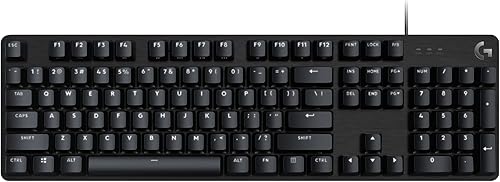
Logitech G413 SE Full-Size Mechanical Gaming Keyboard
Logitech MX Keys vs MX Mechanical: which feels better?
MX Keys suits people who prefer a scissor-switch press, while MX Mechanical suits people who want mechanical feedback. Neither switch style is automatically better; choose the one that feels right for your typing habits.
MX Mechanical offers low-profile mechanical switches in Tactile Quiet, Clicky and Linear versions. The product information supplied for the specific keyboard here describes the Clicky version, which has an audible click and tactile feedback.
MX Keys uses a scissor mechanism rather than a mechanical switch. That style is common on laptop keyboards, so it may feel more familiar if you type on a laptop all day.
Is MX Mechanical louder than MX Keys?
The Clicky MX Mechanical is designed to make an audible click. MX Keys' scissor-switch action avoids that particular clicky mechanical feel, though the sound of any keyboard depends on how you type and the desk beneath it.
If you share a room or take calls near your keyboard, think about sound before choosing the Clicky version. For more mechanical feedback without that specific clicky sound, Logitech also offers Tactile Quiet and Linear switch options.
Which one is better for long typing sessions?
Choose based on the press that feels comfortable to you, since neither keyboard is a universal fit. MX Mechanical has a low-profile layout, while MX Keys offers a scissor-switch style that may feel closer to a laptop keyboard.
The MX Mechanical is described as a full-size keyboard designed for precision and comfort. That description doesn't guarantee it will suit your wrists or desk position, so consider the keyboard's height and your posture.
If you already like your laptop's typing feel, start with MX Keys. If you prefer a distinct tactile response, MX Mechanical is the more direct match.
Which keyboard works better for multiple devices?
MX Mechanical pairs with up to 3 devices, making it the clear fit when you switch between computers. It supports Bluetooth Low Energy and the included Logi Bolt receiver.
That setup can help if you use a work computer and a personal computer at one desk. Basic functions are supported across several operating systems, while Logi Options+ customization is available for Windows and macOS.
The G413 SE is a wired keyboard, so it is a different kind of alternative. It connects through USB 2.0 and is better suited to a fixed desk where you don't need wireless device switching.
For more options across Logitech's wireless lineup, see our best Logitech wireless keyboard picks. If Bluetooth pairing is your priority, our best Logitech Bluetooth keyboards guide focuses on that connection type.
What are the lighting and charging differences?
MX Mechanical adds smart backlighting and rechargeable USB-C power; G413 SE has white LED backlighting and a wired connection. Choose by how much you value cordless use and adaptive lighting.
MX Mechanical's keys light when your hands approach, and the backlight adjusts to changing lighting conditions. Logitech states up to 15 days of battery life on a full charge, or up to 10 months with backlighting turned off.
Those figures are estimates and can vary with use and computing conditions. Keep a USB-C cable available when the keyboard needs charging.
The G413 SE stays connected by cable and has white LED lighting. It avoids battery charging, but the cable may limit where you place it.
Does MX Mechanical have features for gaming?
MX Mechanical is a wireless productivity keyboard, while the G413 SE is explicitly built around gaming features. The G413 SE includes tactile mechanical switches, 6-key rollover anti-ghosting and 12 function-key media controls.
Its PBT keycaps are designed to resist heat and wear, and its top case uses brushed aluminum-magnesium alloy. Those features may appeal if gaming input and a wired desk setup are higher priorities than multi-device wireless use.
MX Mechanical can still serve at a gaming desk if you value wireless pairing and low-profile switches. The information doesn't describe gaming-specific rollover features for it, so compare that point carefully if simultaneous key presses matter to your games.
Which should you choose for your setup?
Pick MX Keys if you want scissor-style typing, and pick MX Mechanical if you want mechanical switches and wireless device pairing. The G413 SE is a separate fit for a wired gaming desk.
Choose MX Keys when you prefer a laptop-like press and don't need the mechanical feedback that defines MX Mechanical. The Logitech MX Keys for Mac review looks at the Mac-focused option, while our MX Keys Mini review covers a compact version.
Choose MX Mechanical if you want low-profile mechanical switches, smart illumination and the ability to pair with up to 3 devices. For a wired board with gaming-focused features, consider the G413 SE instead.
If you're still deciding what layout and features matter, use our computer keyboard buying guide to compare size, connection and everyday use. For a mouse pairing question, see Logitech MX Master vs MX Vertical.
Logitech MX Keys vs MX Mechanical: the verdict
Choose MX Keys for scissor-switch typing, MX Mechanical for low-profile mechanical feedback, or G413 SE for wired gaming features. Let your preferred key feel and desk setup make the final call.
Frequently asked questions
Is Logitech MX Keys mechanical?
No. MX Keys uses low-profile scissor-style keys, while MX Mechanical uses low-profile mechanical switches.
Choose MX Keys for a familiar laptop-like press, or MX Mechanical if you want mechanical feedback and a choice of switch feel.
Can MX Mechanical connect to more than one device?
Yes. MX Mechanical can pair with up to 3 devices through Bluetooth Low Energy or the included Logi Bolt receiver.
That can suit a desk where you switch between computers, though the receiver is separate from Bluetooth pairing.
Does MX Mechanical need to stay plugged in?
No. It has a rechargeable battery and USB-C charging.
Logitech states up to 15 days on a full charge, or up to 10 months with backlighting off; actual battery life can vary with use and computing conditions.
Is the Logitech G413 SE a wireless alternative?
No. The G413 SE is a wired mechanical keyboard with USB 2.0 connectivity.
It may fit a fixed gaming desk where tactile switches and anti-ghosting matter, but it does not offer the wireless multi-device setup of MX Mechanical.


