Logitech MX Master vs MX Master 3S: Should You Upgrade? (November 2026)
Upgrade to the MX Master 3S if quieter clicks and higher sensitivity matter to you; keep the MX Master 2S if it still fits your work. The 3S adds Quiet Clicks and an 8000 DPI sensor, while the 2S already offers 7 buttons and Bluetooth.
On this page (7 sections)
- Logitech MX Master vs MX Master 3S: what changes?
- Should you upgrade from the MX Master 2S?
- Does the MX Master 3S feel different to use?
- Which MX Master 3S version should you choose?
- How do battery and charging affect the decision?
- What else should you check before replacing the 2S?
- Is the Logitech MX Master 3S upgrade worth it?
Upgrade to the MX Master 3S if quieter clicks and higher sensitivity matter to you; keep the MX Master 2S if it still fits your work. The 3S adds Quiet Clicks and an 8000 DPI sensor, while the 2S already offers 7 buttons and Bluetooth.
The MX Master 2S is the earlier model in this comparison. If you meant an even older original MX Master, check its exact connection and features before applying this advice, since the details here cover the 2S.
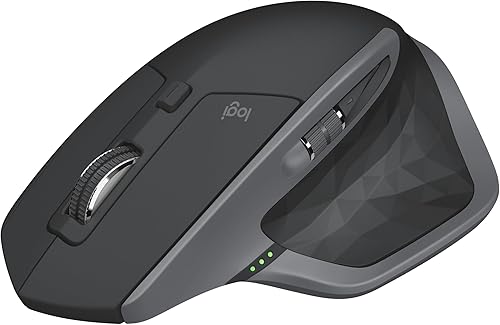 Best for 2S owners who are content
Logitech MX Master 2S Bluetooth Edition Wireless
 Best for quieter clicks and precision
Logitech MX Master 3S Performance Wireless Mouse
Logitech MX Master vs MX Master 3S: what changes?
The MX Master 3S adds Quiet Clicks and an 8000 DPI optical sensor. The 2S is still a capable choice if its existing buttons, Bluetooth connection and scrolling meet your needs.
Both models have 7 buttons and an ergonomic design. The 2S weighs 145 g and the two 3S options weigh 141 g, a 4 g difference that may matter less than sound, tracking or receiver preference.
The 2S supports Bluetooth and connects to up to 3 computers. The 3S Bluetooth model can connect to up to 3 devices, while the other 3S version is named as coming with a Bolt receiver.
The 2S details don't give a maximum sensitivity figure. That means the 8000 DPI figure is a concrete point in the 3S's favor, but the information here can't show a precise DPI-to-DPI improvement over the 2S.
Should you upgrade from the MX Master 2S?
Upgrade if you want the 3S's quieter clicks or its specified 8000 DPI tracking. Keep the 2S if it works well and neither change solves a problem you have.
Quiet Clicks can be useful in a shared room, a quiet office or late work when repeated clicking is distracting. Logitech describes the 3S clicks as having 90% less sound power than the MX Master 3, but that comparison is with the MX Master 3, not the 2S.
The 3S also offers 8000 DPI tracking and is described as tracking on any surface, including glass. Choose it if that feature matches the surfaces you use or if adjustable sensitivity matters in your work.
The weight change is small. A 4 g drop from the 2S to the 3S may not justify replacing a working mouse on its own.
Which Logitech MX Master suits different desk setups?
The 2S suits a setup already built around its Bluetooth connection and up to 3 computers. If you use its buttons and scrolling comfortably, there may be no practical reason to replace it.
The Bluetooth 3S makes sense when you want the newer features and prefer a receiver-free connection. It supports up to 3 Bluetooth devices, and the package doesn't include a USB receiver or charging cable.
The other 3S option is named with a Bolt receiver. If your computer needs a receiver, review the connection details before choosing; Logitech says the 3S isn't compatible with Unifying technology.
If you also need help picking a keyboard for the same desk, see our best keyboard for computer guide. Consider key layout and your work habits alongside the mouse upgrade.
Does the MX Master 3S feel different to use?
The 3S changes the click sound and specifies a higher sensitivity, while both models keep 7 buttons and an ergonomic shape. Those are the clearest differences to weigh against your habits.
Quiet Clicks are the most obvious day-to-day change if you click often around other people. Logitech's stated sound comparison is against the MX Master 3, so it doesn't quantify the difference from the 2S.
The 3S has a thumbwheel and gesture button among its controls, alongside left and right click, back and forward, app-switch, wheel mode-shift and middle click. The 2S also has 7 buttons, though the details here don't enumerate their exact functions.
Think about which controls you actually use. A new mouse won't improve your workflow if your current shortcuts and button habits already work.
Is the 3S a better fit for gaming?
The 3S's 8000 DPI sensor may appeal if sensitivity adjustment matters in a game, but the details here don't mean it is a better gaming mouse overall. Button layout, size and how you play also affect the choice.
The 3S is described as ergonomic and contoured for a natural wrist posture. If gaming is the main reason you're shopping, read Can you use a Logitech MX Master for gaming? before choosing based on DPI alone.
Which MX Master 3S version should you choose?
Choose the Bluetooth-only 3S for a direct Bluetooth setup; choose the Bolt receiver version if you specifically want a receiver. Confirm the connection you need before you order.
The Bluetooth-only model explicitly comes without a USB receiver and charging cable. It can connect to up to 3 devices over Bluetooth, which suits a multi-computer desk when Bluetooth is available on each device.
The other 3S version's name specifies a Bolt receiver. Logitech says the 3S isn't compatible with Unifying technology, so don't assume a receiver you already own will work.
If your existing MX Master depends on a receiver, check its type and your computer's available connections first. Our guide to the Logitech MX Master USB receiver explains what to verify.
How do battery and charging affect the decision?
The 2S lists a 1,680-hour average battery life, while the 3S Bluetooth version lists 70 days. These different units and product details don't give a clean side-by-side battery comparison.
The 3S performance version lists an average battery life of 18 months, while the Bluetooth edition's detail lists 70 days. Those figures differ substantially, so check the exact 3S version and its use conditions before treating either as your expected time between charges.
The 2S includes a Micro-USB cable for recharging. The Bluetooth-only 3S version is described as excluding a charging cable, so plan for a compatible cable if you choose it.
Battery life can vary by user and computing conditions. If the 2S's charging routine already suits you, battery figures alone may not make the upgrade worthwhile.
What else should you check before replacing the 2S?
Confirm the connection, software needs and accessories you rely on before switching. Those details can affect setup more than the small weight difference.
Logi Options+ is required for app-specific profiles and other customizations, and the provided compatibility notes name Windows and macOS for that software. Basic functions are supported without software on other listed operating systems, but advanced customization may be limited.
FLOW can control multiple computers and transfer text, images and files between Windows and macOS when used with Logi Options+. If FLOW is part of your setup, confirm that your operating systems and software fit the feature requirements.
The Bluetooth 3S package doesn't include a receiver or cable. If you carry the mouse between locations, a compatible MX Master storage case may help protect it, though the cited case link here is a comparison of a different mouse shape.
For a case specifically made for MX Master models, the best Logitech MX Master alternative guide can help you compare options.
Is the Logitech MX Master 3S upgrade worth it?
Keep the MX Master 2S if it already meets your needs; move to the 3S for quieter clicks, 8000 DPI tracking or a connection setup that suits you better. The model choice depends on the change you will notice each day.
Pick the 2S if you use its Bluetooth connection, 7 buttons and scrolling without trouble. Pick the Bluetooth 3S if you want the newer features and don't need a USB receiver in the box.
Pick the Bolt receiver version if you want that receiver included, after checking compatibility with your computer and any accessories. For a different ergonomic shape, compare the Logitech MX Master vs MX Vertical before deciding.
Frequently asked questions
Is the MX Master 3S worth upgrading from the 2S?
The MX Master 3S is worth considering if you want Quiet Clicks and an 8000 DPI sensor. If your 2S still handles your daily work and those changes don't matter to you, keeping it is a reasonable choice.
Both have 7 buttons, and the 2S connects to up to 3 computers.
What is the main difference between the MX Master 2S and 3S?
The 3S adds Quiet Clicks and an 8000 DPI optical sensor, while the 2S product details emphasize Bluetooth and Hyper-Fast Scrolling. The 2S specs shown here don't provide a maximum sensitivity number, so they don't support a direct DPI comparison.
Does the MX Master 3S Bluetooth version include a receiver?
No. The Bluetooth-only MX Master 3S version comes without a USB receiver or charging cable.
Choose it if Bluetooth suits your setup, or check the receiver details of another 3S version if you need a USB connection.
Can the MX Master 3S connect to more than one computer?
The Bluetooth MX Master 3S can connect to up to 3 devices. The 2S also connects to up to 3 computers, so multi-device use alone isn't a reason to upgrade; consider the 3S for its quieter clicks and 8000 DPI tracking.
Is the MX Master 3S better for gaming than the 2S?
Neither mouse is an obvious gaming-first choice based on these details. The 3S lists an 8000 DPI sensor, but sensitivity alone doesn't settle game feel or fit.
See our guide to using a Logitech MX Master for gaming for the trade-offs.


